
If your Windows 11 PC has started feeling slow, you are not alone. A computer that once opened apps instantly can gradually become sluggish, take longer to start, freeze during everyday tasks, or struggle when multiple programs are running. The good news is that you do not always need to buy a new computer to fix the problem.
In many cases, slow Windows 11 performance is caused by too many startup programs, limited storage space, unnecessary background processes, outdated drivers, insufficient memory, or system settings that need attention. With a few practical changes, you can often make your PC feel noticeably faster.
This guide explains how to fix Windows 11 running slow and improve overall PC performance without relying on complicated or risky solutions.
Why Is Windows 11 Running Slow?
Before making changes, it helps to understand what may be causing the slowdown.
Windows 11 can become slower for several reasons. Your PC may have too many applications launching when Windows starts, leaving fewer resources available for the programs you actually use. A nearly full hard drive can also affect performance, particularly when Windows does not have enough free space for temporary files and system operations.
Other common causes include:
- Too many background applications
- Too many startup programs
- Low available RAM
- An old or slow hard drive
- Outdated Windows updates or device drivers
- Temporary and unnecessary files
- Malware or unwanted software
- Browser extensions consuming system resources
- High CPU, memory, or disk usage
- Power settings that prioritize battery life over performance
- Aging hardware
The best approach is to identify the cause before changing too many settings at once.
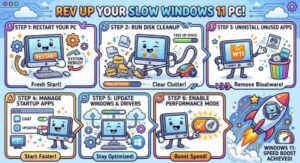
1. Restart Your Windows 11 PC
It sounds simple, but restarting your computer can solve temporary performance problems.
When Windows runs for a long time, applications and background processes can consume memory and other system resources. A restart closes those processes and gives Windows a clean session.
If you normally put your computer to sleep instead of restarting it, try restarting it regularly and see whether performance improves.
A restart will not solve a permanent performance problem, but it is a useful first step.
2. Check What Is Using Your System Resources
Windows 11 includes a useful tool called Task Manager. It can help you discover which applications are consuming the most CPU, memory, disk, or network resources.
Press Ctrl + Shift + Esc to open Task Manager.
Look at the Processes section and pay attention to CPU, Memory, and Disk usage. If one application is using an unusually large amount of resources, it may be contributing to the slowdown.
For example, if your memory usage remains very high even when you are not doing anything demanding, you may have too many applications open or too little RAM for your workload.
Be careful when ending processes. Closing an application you recognize is usually straightforward, but you should avoid terminating unfamiliar Windows system processes unless you know what they do.
3. Disable Unnecessary Startup Programs
One of the most effective ways to speed up Windows 11 is to reduce the number of applications that automatically launch when you start your PC.
Many applications add themselves to the Windows startup process. While some are useful, others may not need to run immediately.
Open Task Manager, select Startup apps, and review the list.
Look for programs you do not need immediately after signing in. You can disable unnecessary startup applications to reduce boot time and free up system resources.
For example, a program that you only use once a week does not necessarily need to launch every time Windows starts.
Do not disable essential security software or drivers simply because they have a startup entry.
4. Free Up Storage Space
A nearly full drive can make Windows feel sluggish and leave less room for temporary files and updates.
Open Settings > System > Storage to see how your storage is being used.
Windows 11 provides storage recommendations that can help you identify unnecessary files. You can also review temporary files and remove items you no longer need.
Pay particular attention to:
- Temporary files
- Recycle Bin contents
- Old downloads
- Large applications you no longer use
- Unnecessary installation files
Before deleting anything, make sure you do not need the files. Important personal documents and photos should be backed up before performing major cleanup.
Keeping a reasonable amount of free storage can help Windows operate more comfortably.
5. Uninstall Programs You No Longer Use
Unused applications do more than occupy storage. Some may also install background services or startup processes.
Go to Settings > Apps > Installed apps and review the programs installed on your computer.
If you find software you no longer use, uninstall it.
Avoid removing programs simply because you do not recognize their names. Some components belong to Windows, hardware manufacturers, graphics drivers, or other software you depend on.
If you are unsure about a program, research its name before uninstalling it.
6. Install Windows and Driver Updates
Keeping Windows 11 updated can improve stability, security, compatibility, and sometimes performance.
Open Settings > Windows Update and check for available updates.
You should also make sure important hardware drivers are current, particularly graphics, chipset, network, and storage-related drivers. For drivers, it is generally best to obtain them from Windows Update or the official hardware manufacturer’s website.
Avoid random third-party driver-updating applications that promise to update every driver automatically. Some can install incorrect or unnecessary software.
7. Scan for Malware
Malware can cause significant performance problems.
Unexpected CPU usage, unfamiliar programs, excessive pop-ups, browser changes, or unexplained network activity can sometimes indicate unwanted software.
Windows 11 includes Microsoft Defender, which provides built-in protection. Run a security scan and follow the recommended actions if anything suspicious is detected.
If you recently installed software from an untrusted source and your computer suddenly became slow, consider whether that installation may be related to the problem.
8. Reduce Unnecessary Background Activity
Some applications continue working even when you are not actively using them.
Cloud synchronization, messaging applications, game launchers, update utilities, browsers, and other software can all consume resources in the background.
Review the applications you regularly keep running and close those you do not need.
You can also review Windows settings related to notifications, permissions, and background activity where appropriate.
The goal is not to disable everything. Instead, reduce unnecessary activity while keeping the features you actually use.
9. Optimize Your Browser
Sometimes the computer is not the real problem—the browser is.
Modern browsers can consume significant memory, especially when you have dozens of tabs open.
If your PC becomes slow while browsing, try closing unused tabs and removing extensions you no longer need.
Check your browser’s extension list and uninstall or disable anything unnecessary.
It can also help to periodically clear unnecessary cached data, although clearing the cache is not a magic performance fix. If your browser is consistently using a large amount of memory, reducing the number of open tabs and extensions may have a greater impact.
10. Choose an Appropriate Power Mode
Windows 11 offers power settings that can influence how aggressively your PC prioritizes performance versus energy efficiency.
If you are using a laptop and need maximum battery life, a power-saving mode can make sense. When the laptop is plugged in and you need more performance, a performance-oriented setting may be more appropriate.
You can review these settings under Settings > System > Power & battery.
Keep in mind that higher-performance settings can increase power consumption and heat.
11. Check Your Hardware
If you have tried software-based fixes and Windows 11 is still slow, your hardware may be the limiting factor.
This is especially important with older PCs.
One of the biggest upgrades for an older computer can be replacing a traditional mechanical hard drive with an SSD. An SSD can dramatically improve startup times, application loading, and general responsiveness.
Adding RAM can also help if your computer frequently runs out of available memory.
For example, a PC used primarily for email and document editing may work comfortably with modest hardware, while a computer used for video editing, large spreadsheets, programming, or demanding applications may benefit from more RAM and faster storage.
Before buying an upgrade, check your motherboard or laptop specifications to confirm compatibility.
12. Keep Your Desktop Organized
A cluttered desktop is not usually the biggest reason Windows 11 becomes slow, but keeping your files organized can make the system easier to manage.
Move large files into appropriate folders and remove shortcuts you no longer need.
More importantly, avoid using your desktop as a permanent storage location for hundreds of files. Organizing documents into folders makes them easier to find and helps you keep track of what should be backed up.
13. Restart and Monitor the Results
After making changes, restart your computer and use it normally for a while.
Do not change twenty settings at once and then assume you know which one solved the problem. Instead, make changes gradually and observe the results.
For example, disable unnecessary startup applications first. Then restart the computer and check whether startup and general responsiveness improve.
If the problem continues, check Task Manager again to see whether CPU, memory, or disk usage points toward a specific bottleneck.
When Should You Consider Replacing Your PC?
Sometimes Windows 11 is slow because the hardware is simply too old for the tasks you are asking it to perform.
If your computer has an older processor, limited RAM, and a slow mechanical drive, software optimization can only go so far.
If an SSD and additional RAM are compatible with your system, upgrading those components may extend the life of the computer. However, if several major components are outdated or the PC does not meet your performance needs, replacing it may make more financial sense.
A slow Windows 11 computer does not automatically mean you need a new PC. Start by identifying what is consuming your system resources, then work through the basics: restart the computer, disable unnecessary startup programs, free up storage, uninstall unused applications, install updates, scan for malware, and reduce unnecessary background activity.
If software changes do not provide enough improvement, look at your hardware. Upgrading from an HDD to an SSD or adding compatible RAM can make a major difference on many older systems.
The key is to troubleshoot methodically rather than installing questionable “PC booster” software. Windows 11 already provides many of the tools you need to diagnose and improve performance.
With regular maintenance and sensible resource management, you can often speed up your Windows 11 PC, improve responsiveness, and get more useful life from your existing computer.
Extra posts:
 Running Windows with Slow or Unstable Internet Tips for Users in Low-Bandwidth Regions
  How to Improve Internet Speed with DNS Tweaks in Windows 11
  How to Speed Up Windows 11 Without Third-Party Tools (Complete Expert Guide)
  How to Fix Windows 11 Not Responding
  How to Fix 100% Disk or CPU Usage in Windows 11
  How to Speed Up Boot Time in Windows 11