

Technology is moving rapidly toward making computers more accessible and intuitive for everyone. One of the most exciting features introduced in Windows 11 is Voice Access, a powerful tool that allows you to control your PC using only your voice. Whether you want to open applications, write emails, navigate the web, or control system settings, Voice Access enables hands-free computing with remarkable accuracy.
This feature is especially helpful for people with mobility challenges, professionals who want to multitask, or anyone who prefers speaking over typing. In this article, we’ll explore what Voice Access is, how it works, and the step-by-step process to set it up and start using it on your Windows 11 PC.
What is Voice Access in Windows 11?
Voice Access is a built-in accessibility feature in Windows 11 that allows users to control their computer entirely with voice commands. Unlike older speech recognition tools, Voice Access processes speech directly on your device, which means it works even without an internet connection once installed.
With Voice Access, you can:
- Open and switch between applications
- Write and edit documents using dictation
- Navigate menus and settings
- Click buttons and interact with interface elements
- Browse the web hands-free
- Control your entire PC using spoken commands
The feature uses advanced speech recognition technology to understand natural language commands, making the experience smoother and more intuitive than traditional voice tools.
Benefits of Using Voice Access
Voice Access isn’t just a novelty feature. It provides real productivity and accessibility benefits.
1. Hands-Free Productivity
You can control your PC without touching the keyboard or mouse. This is helpful while cooking, working with multiple devices, or when your hands are busy.
2. Accessibility Support
Voice Access makes computers easier to use for individuals with physical disabilities or limited mobility.
3. Faster Workflow
In many situations, speaking commands can be faster than typing or navigating through menus.
4. Offline Voice Processing
Unlike many voice assistants, Voice Access works locally on your device, meaning it continues functioning even without an internet connection.
System Requirements for Voice Access
Before enabling Voice Access, make sure your system meets these requirements:
- Windows 11 (latest updates recommended)
- A working microphone
- English language pack installed
- A stable audio input device
For best performance, using a good-quality microphone or headset is recommended.
How to Enable Voice Access in Windows 11 (Step-by-Step)
Setting up Voice Access is straightforward. Follow these steps to enable it.
Step 1: Open Windows Settings
- Click the Start Menu.
- Select Settings (or press Windows + I on your keyboard).
This will open the main Windows configuration panel.
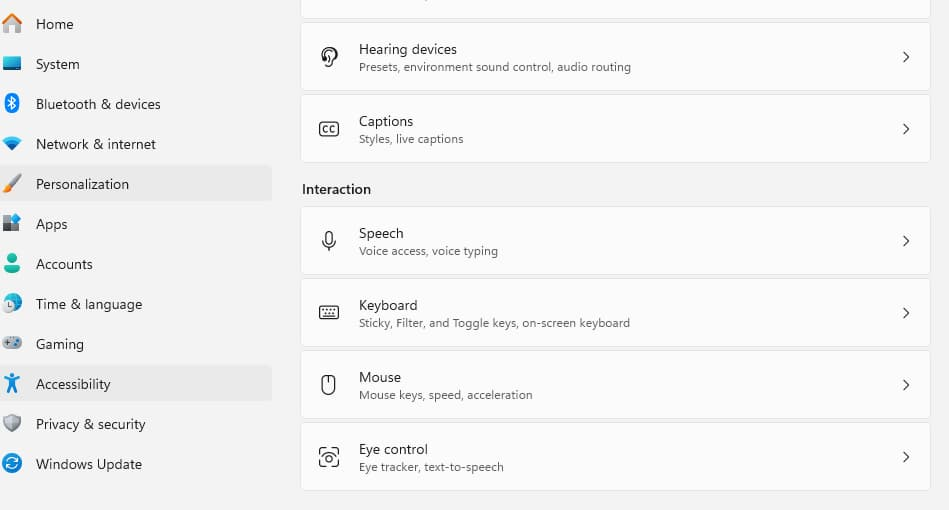
Step 2: Navigate to Accessibility Settings
- In the left sidebar, click Accessibility.
- Scroll down to the Interaction section.
- Click Speech.
This is where all speech and voice-related settings are located.
Step 3: Turn On Voice Access
- Locate the Voice Access toggle.
- Turn the switch On.
Once enabled, Windows will prompt you to download the necessary speech recognition files if they are not already installed.
Step 4: Download Voice Language Pack
If this is your first time enabling Voice Access:
- Windows will ask you to download a speech model.
- Click Download.
- Wait for the installation to complete.
After installation, Voice Access will start automatically.
Step 5: Launch Voice Access
Once activated, a Voice Access bar appears at the top of your screen.
You will see a microphone icon and status indicator showing whether the system is listening.
You can say:
“Voice access wake up.”
This activates listening mode so Windows starts accepting commands.
Basic Voice Commands You Can Use
After Voice Access is enabled, you can start controlling your PC using simple commands.
Opening Applications
You can open apps by saying:
- “Open Chrome”
- “Open Microsoft Word”
- “Open Settings”
Windows will launch the requested program instantly.
Navigating the Interface
You can move around the interface using commands like:
- “Scroll down”
- “Scroll up”
- “Go back”
- “Click Start”
These commands allow smooth navigation without using a mouse.
Dictating Text
Voice Access also works as a dictation tool.
Simply place your cursor in a text field and start speaking.
Example:
“Hello comma this is a voice typing test period”
Windows will automatically convert your speech into text.
You can also say commands like:
- “Delete that”
- “Select previous word”
- “Insert new line”
This makes editing text easier while dictating.
Using Number Grid for Precise Control
Sometimes clicking specific buttons or small interface elements can be difficult with voice commands alone. Voice Access solves this using a number grid system.
How it Works
- Say “Show numbers.”
- Numbers will appear over clickable elements on the screen.
- Speak the number associated with the item.
Example:
“Click 5”
The system will select that exact button.
This is extremely helpful for navigating complex menus or websites.
Advanced Voice Commands
Voice Access also supports advanced control features.
Switching Between Apps
You can say:
- “Switch to Chrome”
- “Switch to File Explorer”
This instantly moves you between open programs.
Controlling Windows
You can manage windows with commands like:
- “Minimize window”
- “Maximize window”
- “Close window”
This allows full window management using only voice input.
Scrolling and Navigation
For browsing or reading documents:
- “Scroll down slowly”
- “Scroll up”
- “Stop scrolling”
These commands are useful when reading long articles or documents.
Tips for Best Voice Recognition Accuracy
To get the best performance from Voice Access, consider the following tips.
Use a Quality Microphone
Built-in laptop microphones work, but external headsets or microphones usually give better accuracy.
Speak Clearly
Speak naturally but clearly. Avoid speaking too fast.
Reduce Background Noise
Quiet environments help the speech engine understand commands better.
Use Natural Commands
Voice Access is designed to understand simple, natural phrases.
Troubleshooting Voice Access Issues
If Voice Access is not working correctly, try these solutions.
Check Microphone Settings
Go to Settings → System → Sound → Input and ensure the correct microphone is selected.
Restart Voice Access
Turn Voice Access off and back on again from the Accessibility settings.
Update Windows
Ensure your system is running the latest Windows 11 update.
Check Language Pack
Make sure the English speech language pack is installed.
The Future of Voice Control in Windows
Voice interfaces are becoming more powerful every year. With improvements in artificial intelligence and speech recognition, voice control may soon become a primary way people interact with computers.
Microsoft continues to improve Voice Access with updates, adding more languages, smarter commands, and better integration across Windows applications.
For users who want a faster, more accessible, and hands-free computing experience, Voice Access is an excellent feature to start using today.
Extra posts:
 Unlocking Hidden Superpowers in Windows 11 Speech, Eye, and Voice Access Tools You Didn’t Know You Had
  Voice Typing in Windows 11 Dictate Like a Pro
  How to Move the Start Menu to the Left in Windows 11 (Like Windows 10 Style)
  Can I Rollback a Windows 11 Update? A Complete Guide to Reverting Windows Updates Safely
  How to Record a Voice Note in Microsoft Teams A Quick and Powerful Way to Communicate
  Windows 10 Extended Security Updates: A Bridge to Your Windows 11 Experience