
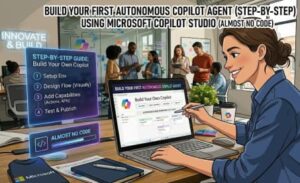
AI agents are changing how businesses automate daily work. In the past, building an intelligent assistant required developers, APIs, complex frameworks, and hundreds of lines of code.
Today, that is changing.
With Microsoft Copilot Studio, businesses can create autonomous AI agents using a low-code approach. Instead of building every component manually, you can design an agent that understands requests, connects to business tools, and completes workflows automatically.
In this tutorial, we will build a real-world AI agent:
Meeting Summarizer → Task Creator → Email Sender Agent
The goal:
After a meeting transcript becomes available, the agent will:
- Understand the conversation
- Generate a meeting summary
- Extract action items
- Create tasks automatically
- Draft and send a follow-up email
The entire workflow can be created with minimal coding.
What Is an Autonomous Copilot Agent?
A normal chatbot answers questions.
An autonomous copilot agent can complete tasks.
For example:
A user says:
“Prepare the follow-up from yesterday’s meeting.”
Instead of only replying, the agent can:
- Find meeting information
- Analyze the discussion
- Create a summary
- Generate tasks
- Notify team members
The workflow becomes:

Why Use Microsoft Copilot Studio?
Building AI agents traditionally requires:
- AI model integration
- Prompt engineering
- Backend APIs
- Authentication
- Workflow orchestration
Microsoft Copilot Studio simplifies this.
It provides:
- Visual agent builder
- AI-powered conversations
- Custom instructions
- Connectors
- Power Automate integration
- Enterprise security
You focus on the business process instead of infrastructure.
Our Agent Architecture
The solution has four main pieces:

Components:
Microsoft Copilot Studio
The brain of the agent.
Responsible for:
- Understanding user intent
- Following instructions
- Calling actions
Power Automate
The automation engine.
Responsible for:
- Creating tasks
- Sending emails
- Connecting business systems
Microsoft 365 Services
Examples:
- Outlook
- Microsoft Planner
- Teams
- SharePoint
Step 1: Create Your Copilot Agent
Open Microsoft Copilot Studio.
Create a new copilot:
Agent Name:
Meeting Assistant Agent
Add instructions:
You are a meeting productivity assistant.
Your responsibilities:
1. Summarize meeting transcripts
2. Identify decisions
3. Extract action items
4. Create follow-up communication
Always provide:
– Summary
– Tasks
– Recommended next steps
The instructions define your agent’s behavior.
Step 2: Add Your Meeting Trigger
The first step is receiving meeting information.
Example trigger:
Trigger:
New meeting transcript available
Possible sources:
- Microsoft Teams meeting
- Uploaded document
- SharePoint file
- User message
The agent receives:
Meeting Transcript:
“We discussed the product launch.
John will prepare marketing materials.
Sarah will review customer feedback.”
Step 3: Create the AI Summary Prompt
Now add an AI prompt.
Inside Copilot Studio:
Create a prompt:
Analyze this meeting transcript.
Generate:
1. Short summary
2. Important decisions
3. Action items
4. Responsible people
Transcript:
{meetingTranscript}
Example output:
Summary:
The team discussed the upcoming product launch.
Decisions:
– Launch planned for next month
Tasks:
1. John:
Prepare marketing materials
2. Sarah:
Review customer feedback
No custom AI code required.
Step 4: Connect Power Automate
Now we make the agent take action.
Create a Power Automate flow:
Trigger:
Copilot sends meeting summary
↓
Create Planner Tasks
↓
Send Outlook Email
The flow handles the business operations.
Step 5: Create Tasks Automatically
Add a Planner action:
Create a task
Map AI output:
Task Title:
Action item from meeting
Assigned To:
Detected owner
Description:
AI-generated task details
Now your agent turns conversations into work.
Step 6: Send Follow-Up Email
Add Outlook connector:
Send Email
Email template:
Subject:
Meeting Follow-up
Body:
Hello team,
Here is the summary from today’s meeting:
{summary}
Action items:
{tasks}
Thanks
The agent automatically prepares communication.
Example Complete Workflow
A user uploads a transcript:
Project meeting notes:
The launch date is confirmed.
Mike will prepare documentation.
Lisa will test the application.
The agent creates:
Summary
The team confirmed the launch schedule.
Tasks
Mike:
Prepare documentation
Lisa:
Test application
Subject:
Project Meeting Follow-up
Hello team,
Here are today’s decisions…
A manual 30-minute process becomes an automated workflow.
Adding More Intelligence
Your agent can become more powerful by adding:
Knowledge Sources
Connect:
- SharePoint documents
- Company policies
- Product documentation
Example:
The agent can answer:
“What is our release process?”
by searching company knowledge.
Add Approval Steps
Not every action should happen automatically.
For sensitive workflows:
AI Creates Email
Manager Approval
Send Email
This gives teams control.
Deployment Tips
Start Small
Avoid building a huge agent immediately.
Begin with:
Meeting Summary Agent
Then add:
Task Creation
Email Automation
CRM Updates
Use Clear Instructions
Good instructions create better agents.
Instead of:
Help users.
Use:
Analyze meeting transcripts.
Extract owners and deadlines.
Create actionable tasks.
Monitor Agent Performance
Track:
- User requests
- Failed actions
- Workflow runs
- AI responses
Improve prompts based on real usage.
Secure Your Agent
For enterprise deployments:
Use:
- Microsoft Entra ID
- Role-based access
- Approval workflows
- Data permissions
The agent should only access information users are allowed to see.

Building an autonomous AI agent no longer requires advanced programming skills.
With Microsoft Copilot Studio and Power Automate, businesses can create intelligent workflows that connect AI reasoning with everyday tools.
The meeting summarizer → task creator → email sender agent is a simple example of what is possible.
The same approach can automate:
- Customer service workflows
- Employee onboarding
- Sales follow-ups
- Document processing
- Internal knowledge assistants
The future of business automation is not just AI that answers questions.
It is AI that completes work.
Extra posts:
 No-Code AI How Non-Developers Can Build Smart Chatbots with Copilot Studio
  How to Build Your First AI Agent in Copilot Studio in 15 Minutes
  No-Code AI: How Non-Developers Can Build Smart Chatbots with Copilot Studio
  Low-Code vs Pro-Code How Copilot Studio Bridges the Gap
  Getting Started with Copilot Studio Build Your First AI-Powered Bot
 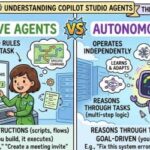 The Difference Between Declarative Agents and Autonomous Agents in Copilot Studio