
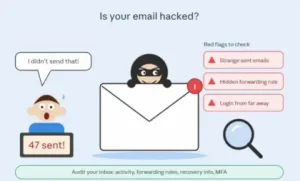
Your friend texts: “Hey, why did you send me a link to some crypto thing?” You didn’t. That message is one of the most common ways people learn their email has been hacked. Someone else has been writing as you, and you’re the last to find out.
Email is the master key to your digital life. Every password reset, bank alert, and account verification lands there, so an attacker who controls your inbox can often take over everything else. The good news is that compromised accounts usually leave traces, if you know where to look.
1. Check Your Recent Login Activity
The first place to investigate is your account’s authentication history.
Major email providers typically show recent sign-ins, including information such as:
- Approximate location
- IP address
- Device or browser
- Date and time of access
- Active sessions
- Authentication method
Don’t panic over an unfamiliar location immediately. IP geolocation isn’t perfectly accurate, and mobile networks or corporate VPNs can make a legitimate login appear to originate somewhere unexpected.
Instead, correlate several signals.
For example, an unfamiliar login from a new device at 3:00 a.m., followed by a password change notification you didn’t initiate, is considerably more concerning than an unfamiliar IP address on its own.
For organizational accounts, IT teams should go beyond the basic mailbox interface. Identity providers and security platforms can provide authentication logs that expose failed login attempts, unusual geographic patterns, unfamiliar devices, and suspicious authentication behavior.
What to look for
Pay particular attention to:
- Successful logins you don’t recognize.
- Repeated failed authentication attempts.
- New devices or sessions.
- Password or recovery-information changes.
- Unexpected multi-factor authentication prompts.
- Sign-ins occurring while you know the account was not being used.
A single anomaly isn’t necessarily proof of compromise. Several related anomalies deserve investigation.
2. Look for Emails You Didn’t Send
Check your Sent, Trash, and Deleted Items folders.
If messages appear that you didn’t write, your account may have been accessed by someone else. Attackers sometimes use compromised accounts to send phishing messages to colleagues, customers, friends, or other contacts.
But there’s an important technical detail here: finding suspicious email in your Sent folder isn’t the only indicator.
An attacker may send messages through an API, a connected application, or another mail client. Depending on the provider and access method, the activity may not look exactly like a normal message sent from your webmail interface.
Ask yourself:
- Are there messages you don’t remember sending?
- Did contacts receive unexpected emails from you?
- Are there unusual replies or deleted messages?
- Did someone report receiving a phishing link from your address?
If your account is used for work, check whether the suspicious message was sent internally, externally, or both. That can help determine the potential scope of the incident.
3. Inspect Email Forwarding Rules and Filters
This is one of the most important checks—and one that people often overlook.
An attacker who gains access to your mailbox may create an automatic forwarding rule. The goal is simple: keep receiving copies of your emails even after you regain control of the account.
For example, a malicious rule might automatically forward messages containing terms such as:
- “invoice”
- “password”
- “payment”
- “wire”
- “credentials”
- “security”
Attackers can also create filters that move security notifications into a hidden folder, making their activity harder to detect.
Check your email settings for:
- Automatic forwarding
- Inbox rules
- Filters
- Delegated mailbox access
- Unknown aliases
- Mailbox permissions
For Microsoft 365 or Google Workspace environments, administrators should also inspect organization-level mail-flow and account configuration where appropriate.
An unfamiliar forwarding destination is a particularly strong reason to treat the account as potentially compromised.
4. Watch for Password Reset Messages You Didn’t Request
A flood of unexpected password-reset emails can mean someone is attempting to take control of your other accounts.
There’s an important distinction here: receiving a password-reset email doesn’t automatically mean your email itself has been hacked. Someone may simply know your username or email address and be attempting credential attacks elsewhere.
However, if you also notice:
- Password-change notifications you didn’t initiate
- New-device alerts
- MFA prompts you didn’t approve
- Recovery email changes
- Security alerts from multiple services
then investigate immediately.
Your email account may be the target because it can be used to reset passwords for other services.
This is particularly dangerous for developers and IT professionals whose email is connected to source-code repositories, cloud consoles, CI/CD systems, ticketing platforms, and administrative accounts.
5. Check Your Recovery Information
Open your account’s security settings and verify that the recovery mechanisms still belong to you.
Look for unexpected changes to:
- Recovery email addresses
- Phone numbers
- Authentication apps
- Security keys
- Trusted devices
- Backup codes
- App passwords
An attacker who changes recovery information may be trying to establish persistent control.
If everything looks normal but you still suspect compromise, review active sessions and revoke anything unfamiliar.
6. Check Connected Apps and OAuth Access
Modern email accounts aren’t isolated inboxes. They often authorize third-party applications to access messages, contacts, calendars, or other account data.
That makes OAuth access worth checking.
Review the applications and services connected to your account. Remove access for anything you don’t recognize or no longer use.
For an IT team, this is especially important because a compromised third-party application can provide continued access even after the user’s password has been changed.
A password reset alone isn’t always enough if an attacker has obtained a persistent authentication token or established another form of authorized access.
What to Do If You Think Your Email Was Hacked
If several indicators point toward compromise, don’t spend hours investigating while leaving the account exposed.
Take these steps:
1. Change the password
Use a long, unique password that isn’t reused anywhere else.
If you use the same password on other services, change those passwords too—particularly high-value accounts associated with your email.
2. Enable or reset MFA
Multi-factor authentication provides an additional authentication layer if a password is exposed.
For high-value accounts, phishing-resistant authentication methods such as passkeys or hardware security keys can provide stronger protection than traditional SMS-based authentication.
3. Revoke suspicious sessions
Sign out unfamiliar devices and sessions through your account’s security controls.
4. Remove malicious rules
Delete unauthorized forwarding rules, filters, delegates, applications, or other persistence mechanisms.
5. Check other accounts
Search for password resets and security notifications from financial services, cloud platforms, social networks, developer tools, and business applications.
6. Notify your IT/security team
If the compromised account belongs to an organization, don’t treat it as a personal password problem. Report it.
Security teams may need to investigate authentication logs, OAuth grants, mailbox rules, phishing activity, endpoint telemetry, and other indicators of compromise.
A Compromised Email Account Can Become a Bigger Incident
The biggest mistake is thinking, “It’s only my email.”
Email frequently functions as an identity-control layer for dozens of other services. An attacker who controls it may be able to reset passwords, intercept sensitive communications, impersonate you, access cloud services, or launch convincing phishing attacks against people you work with.
For technical teams, the investigation should therefore extend beyond the mailbox.
Review identity-provider logs, endpoint activity, authentication events, application access, and privileged accounts. If the account had administrative permissions, assume the potential impact is broader until the evidence shows otherwise.
Practical Takeaway: Treat Unexpected Account Activity as a Signal
Knowing how to know if your email has been hacked comes down to recognizing patterns rather than relying on one suspicious event.
Start with your login history. Then inspect sent messages, forwarding rules, filters, recovery settings, active sessions, and connected applications. If you find evidence of unauthorized access, secure the account quickly and investigate what else the attacker may have accessed.
For personal accounts, a security check can take only a few minutes. For business accounts, the same warning signs should trigger a structured incident-response process.
The safest approach is simple: don’t wait for an obvious breach notification. Learn what normal account activity looks like, monitor for deviations, and act as soon as multiple signals line up.
Extra posts:
 From Draft to Decision: How to Integrate Copilot Studio Agents with Power Automate for Smart Email Approval Workflows
  SharePoint Incoming email
  Prevent Forwarding your email messages
  Transform Your Email Game with Outlook Copilot
  Flag Email in outlook will add Task for you on To Do List
  Get email when Item is added in SharePoint Library using Flow