
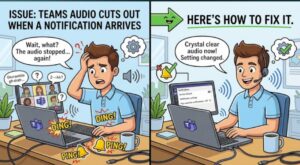
You’re watching a video or sitting in a Teams call, everything is working normally, and then a Microsoft Teams message arrives. Suddenly, the video stutters, the audio freezes for a second, or the entire call sounds like it has been interrupted.
It’s an annoying problem because the notification itself seems harmless. A simple chat message shouldn’t be enough to disrupt video playback or call audio.
Yet it can happen, particularly on Windows systems where Microsoft Teams, audio drivers, notification services, graphics processing, and other applications are competing for system resources.
The good news is that this usually isn’t a problem with the Teams message itself. The notification is often the trigger that exposes an underlying issue with audio-device handling, system load, drivers, notification behavior, or application configuration.
Here’s how to diagnose and fix it.
Why Does Teams Cause Audio or Video to Freeze When a Message Arrives?
When a Teams notification appears, several things can happen almost simultaneously.
Teams may process the incoming message, update its interface, play a notification sound, trigger a Windows notification, and communicate with its audio subsystem. At the same time, your computer may already be decoding a video, handling a Teams meeting, processing browser tabs, or running other applications.
On a lightly loaded system, you probably won’t notice any of this.
On a system that’s already close to its CPU, memory, GPU, or disk limits, the additional activity can cause a brief interruption.
There are several common causes:
- Audio device switching or reinitialization
- Outdated or problematic audio/GPU drivers
- High CPU, RAM, or GPU usage
- Windows communication or notification settings
- Teams hardware acceleration or application issues
- Conflicts between Teams and another application using the same audio device
The first step is identifying which category applies to your machine.
1. Check Whether the Problem Happens Only With Teams Notifications
Before changing drivers or reinstalling applications, perform a simple test.
Play a video continuously and wait for a Teams message notification.
Then repeat the test with Teams notifications disabled or Teams completely closed.
If the freezing disappears when Teams isn’t running, you’ve established an important clue: Teams or its interaction with Windows is likely involved.
You can also test different scenarios:
- Play a video in Chrome or Edge.
- Leave Teams running in the background.
- Receive a Teams message.
- Check whether audio freezes.
- Join a Teams meeting and repeat the test.
- Try the same video with Teams closed.
Pay attention to whether video playback freezes, audio freezes, or both.
That distinction matters.
If only the audio cuts out, investigate the audio device, driver, and Windows sound configuration first. If the entire video briefly freezes, CPU/GPU utilization or application-level processing becomes more suspicious.
2. Check CPU, Memory, and GPU Usage
Open Task Manager in Windows and watch system utilization while reproducing the problem.
Look at:
- CPU
- Memory
- Disk
- GPU
- Microsoft Teams processes
- Your browser or media player
If CPU usage suddenly spikes when the Teams notification arrives, the notification may simply be exposing a resource bottleneck.
The same applies to memory. When available RAM becomes limited, Windows may need to move data between physical memory and disk storage. That can introduce short pauses, particularly when several applications are active.
GPU usage is also worth checking if you’re watching high-resolution video or using hardware-accelerated applications.
A useful troubleshooting test
Close unnecessary applications before reproducing the issue.
For example, temporarily close:
- Multiple browser windows
- Video editors
- Screen-recording software
- Virtual machines
- Large development environments
- Cloud synchronization tools
- Other communication applications
If Teams notifications stop causing freezes after reducing the workload, the underlying problem may be resource contention rather than Teams itself.
3. Update Audio and Graphics Drivers
Driver problems are another common source of short audio interruptions.
Teams calls and notifications can exercise the Windows audio stack differently from ordinary media playback. Your browser may also use GPU acceleration to decode video.
That makes both audio drivers and graphics drivers worth checking.
For audio, look at the device manufacturer or your computer manufacturer’s support page for the latest driver.
Common audio hardware vendors include:
- Realtek
- Intel
- AMD
- NVIDIA
- USB headset manufacturers
If you’re using a USB headset or external audio interface, check its firmware and driver software as well.
For graphics, update the appropriate Intel, AMD, or NVIDIA driver.
After updating, restart Windows rather than simply reopening Teams.
That gives Windows a clean opportunity to reload the relevant drivers and services.
4. Check Windows Communication Settings
Windows has historically included communication-related behavior that can reduce the volume of other applications when Windows detects communication activity.
Depending on the Windows version and configuration, this can affect how audio behaves when applications such as Teams are involved.
Open Windows sound settings and inspect the communication-related options.
The exact interface can vary between Windows releases, but look for settings associated with:
Sound → More sound settings → Communications
If Windows is reducing or modifying other audio when Teams activity occurs, changing this behavior can help determine whether the operating system’s communication handling is involved.
This is particularly useful if your symptom isn’t a complete freeze but sounds more like:
- Audio suddenly becoming quieter
- Media audio briefly disappearing
- Volume changing when Teams receives activity
- Audio returning after a short delay
5. Test Teams With Notification Sounds Disabled
One of the simplest diagnostic steps is to disable Teams notification sounds temporarily.
The purpose isn’t necessarily to leave them disabled permanently. You’re testing whether the notification sound is causing the interruption.
If disabling notification sounds completely eliminates the freezing, you’ve narrowed the problem considerably.
It suggests that the interaction between Teams’ notification audio and your current playback or communication audio path may be involved.
This can be especially relevant when using:
- Bluetooth headphones
- USB headsets
- Wireless earbuds
- External DACs
- Professional audio interfaces
- Devices with their own audio-management software
Bluetooth devices deserve particular attention because some Bluetooth profiles handle high-quality media playback differently from two-way communication.
6. Check Your Default Audio Device
Another potential cause is Windows switching between audio endpoints.
For example, you might have:
- Laptop speakers
- Bluetooth headphones
- USB headset
- HDMI monitor audio
- External speakers
When an application initializes or accesses an audio device, Windows and the application have to determine which endpoint should handle the audio.
If the default device changes unexpectedly—or if a device briefly disconnects and reconnects—you may hear a short freeze or interruption.
Go to Windows Settings → System → Sound and verify the output device you’re actually using.
If you have multiple audio devices connected, temporarily disconnect the ones you’re not using.
Then test Teams again.
This is particularly useful on desktop systems with multiple monitors, USB docks, HDMI devices, and headsets.
7. Check Teams and Hardware Acceleration Behavior
If the problem started after a Teams update, application configuration is worth investigating.
Teams relies heavily on the operating system and hardware for rendering, video processing, audio processing, and interface updates. A problem introduced by an application update can sometimes appear only under a specific hardware configuration.
Make sure you’re using the current Teams client available for your organization.
If the problem affects meetings as well as ordinary video playback, also test Teams under a simpler workload.
For example:
- Close unnecessary Teams windows.
- Leave unused Teams channels or applications alone.
- Reduce the number of active browser tabs.
- Temporarily disable unnecessary startup applications.
- Restart Teams completely rather than leaving it running indefinitely.
If the issue occurs only after Teams has been running for many hours, memory or application-state issues become more plausible.
8. If You’re Using Bluetooth, Test a Wired Headset
Bluetooth is convenient, but it introduces another layer of complexity.
A Bluetooth headset can use different audio profiles depending on whether an application needs microphone access. A Teams call requires two-way communication, while watching a video generally requires high-quality playback.
That transition can affect audio quality and stability.
As a diagnostic test, connect a wired headset or a USB headset and reproduce the problem.
If the freezing disappears, focus your investigation on:
- Bluetooth drivers
- Headset firmware
- Bluetooth profiles
- Windows Bluetooth configuration
- Manufacturer audio software
This test can save a lot of time because it quickly separates a Teams problem from an audio-device problem.
9. Look for the Pattern, Not Just the Symptom
The most useful troubleshooting question isn’t simply, “Does Teams freeze my audio?”
Ask:
What exactly happens at the moment the Teams message arrives?
For example:
| Symptom | Likely area to investigate |
|---|---|
| Audio cuts out briefly | Audio device/driver |
| Video and audio both freeze | CPU/GPU/system resources |
| Volume suddenly drops | Windows communication settings |
| Bluetooth audio changes quality | Bluetooth profile |
| Problem occurs only during Teams calls | Teams audio configuration |
| Problem disappears when Teams closes | Teams/notification interaction |
| Problem started after an update | Driver or application regression |
This approach is much more effective than randomly reinstalling Teams.
Practical Takeaway: Troubleshoot From the Outside In
When a Teams message causes your video or call audio to freeze, don’t assume the notification itself is defective.
Start with the simplest variables.
First, reproduce the issue with Teams open and closed.
Second, watch CPU, memory, and GPU usage in Task Manager.
Third, test your audio device with Teams notification sounds disabled.
Fourth, update audio and graphics drivers.
Fifth, test another headset—preferably wired or USB—to rule out Bluetooth problems.
Finally, if the problem continues, investigate Teams-specific configuration, Windows sound settings, and recent application or driver updates.
The goal is to identify the exact point where the interruption occurs rather than changing ten settings at once. Once you know whether the trigger is notification audio, resource usage, the audio device, Bluetooth, or Teams itself, the fix is usually much easier to find.
Extra posts:
 How to Fix Windows 11 No Sound or Audio Not Working
  Get Notification in Teams when your contacts become Available
  How to Fix Teams Screen Sharing Not Working
  How to Fix Common Microsoft Teams Connection Problems
  How to Record Audio and Screen Together in Windows 11: A Complete Beginner-to-Pro Guide
  GPT‑5 Finally Arrives in Microsoft 365 Copilot