
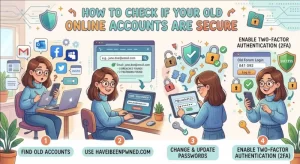
An account you created ten years ago for a shopping discount, an online forum, or a free software trial might seem harmless. But if it still uses an old password, contains personal information, or connects to other services, it could give an attacker an easy route into your digital life.
The problem is that forgotten accounts rarely receive the same attention as the email, cloud, and work accounts you use every day. Passwords go unchanged, recovery addresses become outdated, and services you no longer recognize may still hold your data. Some may even retain access to applications you continue using.
For IT professionals, software developers, and security-conscious users, reviewing these accounts is a practical part of identity and access management. The goal is not simply to delete old profiles. It is to identify which accounts remain exposed, understand what they can access, and reduce the risk they create.
Here is a systematic way to audit your older online accounts and decide what to secure, what to revoke, and what to close.
Why Old Online Accounts Can Become Security Risks
An inactive account is not necessarily a safe account. If a service suffers a data breach, attackers may obtain usernames, email addresses, password hashes, or other personal information. If you reused the exposed password elsewhere, the consequences can extend far beyond the original service.
Three common risks deserve particular attention.
- Credential reuse: An old password may still work on another website, making credential stuffing attacks more effective.
- Outdated recovery settings: An account may depend on an email address or phone number you no longer control.
- Excessive connected access: Third-party applications, social sign-ins, and API tokens may retain permissions long after you stop using a service.
Consider an old developer forum account connected to a Git hosting platform. Even if you no longer visit the forum, an exposed password could put other accounts at risk if you reused it. If the account also authorized a third-party application, that connection may present a separate exposure.
The key principle is simple: assess an account based on its permissions, stored information, and authentication controls—not just how frequently you use it.
Step 1: Find Your Forgotten Online Accounts
You cannot secure accounts you do not know exist. Start by building an inventory from sources you already control.
Search your email history
Search your inbox and archived messages for terms such as:
- “Welcome” or “Verify your email”
- “Password reset” or “Security alert”
- “Your subscription” or “Account created”
- “Sign in with Google” or “Sign in with Apple”
Repeat these searches across any email addresses you have used over the years. Password reset messages, receipts, and account notifications can reveal services you have forgotten.
Review your password manager and browser
Check saved credentials in your password manager and browser. Look for duplicate entries, unfamiliar domains, and passwords that have not been updated in years.
Also review the applications connected to your primary identity providers. Your Google, Apple, Microsoft, or other sign-in account may list third-party services that use single sign-on (SSO).
Create a simple inventory with these fields:
| Field | What to record |
|---|---|
| Service | Website, application, or platform |
| Account identifier | Email address or username |
| Business value | Active, needed occasionally, or unused |
| Access level | Standard user, administrator, or connected application |
| Security status | Password, MFA, recovery options, and alerts |
| Decision | Secure, revoke access, or delete |
This inventory turns a vague cleanup task into a repeatable security review.
Step 2: Check Whether Your Credentials Have Been Exposed
Once you have identified old accounts, investigate whether their associated email addresses appear in known data breaches.
A useful starting point is Have I Been Pwned, a service that lets you check email addresses against known breach records. Visit the official website at https://haveibeenpwned.com/ and enter an address you have used for online accounts.
If the address appears in a breach, examine the incident details and determine which services were affected. A breach listing does not automatically mean someone has accessed your account, but it provides a reason to investigate.
Take these precautions:
- Change the password on any affected account if it remains active.
- Replace reused passwords on other services, prioritizing email, financial, cloud, and work accounts.
- Enable MFA wherever available.
- Review recent sign-in activity and terminate sessions you do not recognize.
Use a unique, randomly generated password for every service. A reputable password manager can generate and store these credentials without requiring you to remember each one.
Important distinction: A clean breach search does not prove that an account is secure. It only means the address was not found in the breach records searched. Unknown incidents, phishing, malware, and password reuse can still create risk.
Step 3: Inspect Authentication and Recovery Settings
An account may have a strong password and still be vulnerable if its recovery process is weak.
For every account worth keeping, review the following settings.
Password strength and reuse
Replace short, predictable, or reused passwords. Long, unique passwords are generally more useful than complicated passwords that are reused across services.
If you suspect an account has been compromised, change its password immediately and review related accounts that may share the same credential.
Multi-factor authentication
Enable multi-factor authentication (MFA), which requires another verification factor in addition to your password.
An authenticator app or passkey is generally preferable to relying solely on SMS when the service supports stronger options. Hardware security keys can provide additional protection for high-value accounts, especially administrator and developer accounts.
Recovery information
Confirm that your recovery email and phone number are current and under your control. Remove obsolete phone numbers and unfamiliar recovery methods.
Review backup codes and regenerate them if they may have been exposed. Store new codes securely rather than leaving them in an unprotected document.
Active sessions and login alerts
Check recent login history, recognized devices, and active sessions. Sign out unfamiliar sessions and revoke old devices you no longer use.
Enable security notifications for new logins, password changes, and recovery-setting changes where available.
For professionals managing multiple accounts, prioritize email and identity-provider accounts first. These accounts can often be used to reset passwords elsewhere, making them especially valuable targets.
Step 4: Review Third-Party Access, Tokens, and Permissions
A password change does not necessarily remove every way an application can access your data.
Many services allow users to connect external applications through OAuth authorization. These connections can grant permissions to read profile information, access files, or perform other actions without repeatedly asking for the account password.
Review the connected-applications or authorized-services page for each important account. Remove integrations you no longer recognize or use, and inspect the permissions granted to those you keep.
For software developers and IT teams, the review should go further:
- OAuth tokens: Revoke obsolete authorizations and review token scopes.
- API keys: Rotate exposed or unnecessary keys and remove unused credentials.
- Personal access tokens: Check expiration dates, repository permissions, and administrative privileges.
- Service accounts: Confirm that abandoned integrations no longer depend on accounts scheduled for deletion.
- Sessions and devices: Revoke stale sessions where the platform supports it.
Follow the principle of least privilege: every user, application, and token should have only the permissions required for its current purpose.
Before revoking a connection, verify that it is not supporting a production integration or essential workflow. In business environments, coordinate with the relevant service owner to avoid unexpected outages.
Step 5: Decide Which Accounts to Keep, Secure, or Delete
Not every old account needs to survive the audit. Classify each one into one of three groups.
Keep and secure: Retain accounts that support active subscriptions, business processes, important records, or services you may need again. Update credentials, recovery options, MFA, and permissions.
Revoke and investigate: Use this category for accounts with suspicious activity, unfamiliar integrations, or unexpected permissions. Secure the identity, revoke questionable access, and investigate before deciding whether to close it.
Delete: Close accounts that have no continuing purpose and no records you need to preserve.
Before deleting an account, export important data, check billing arrangements, transfer ownership of shared assets, and disconnect linked applications. Follow the service’s official account-closure process and verify that the request has been completed.
Remember that deleting a profile does not necessarily erase every copy of your data immediately. Services may retain certain records for legal, operational, or backup purposes under their published policies.
For organizations, document the decision, responsible owner, and completion date. That record makes future audits easier and helps prevent forgotten accounts from accumulating again.
Build a Repeatable Account Security Routine
A one-time cleanup is useful, but account security improves when the review becomes routine.
For personal accounts, schedule a review every three to six months or after a significant security incident. For organizations, use an established identity lifecycle process to review account ownership, privileges, connected applications, and inactive credentials.
A practical checklist includes:
- Identify forgotten accounts using email, browser, and password-manager records.
- Check relevant email addresses against known breach records.
- Replace reused passwords and enable MFA.
- Verify recovery methods and review recent sign-ins.
- Revoke unused application permissions and tokens.
- Delete unnecessary accounts after preserving required data.
- Record the results and schedule the next review.
Where available, automate parts of the process with identity governance tools, centralized authentication logs, and periodic access reviews. Automation is particularly valuable when an organization has hundreds of SaaS applications or contractors whose access changes frequently.
Turn Forgotten Accounts Into Managed Security Risks
Old online accounts are easy to overlook because they often sit outside everyday security routines. Yet they may retain valuable personal information, weak credentials, or access to other systems.
A structured review gives you a clear starting point: discover the accounts, check for known breaches, strengthen authentication, inspect connected permissions, and close what you no longer need.
Start with your primary email account and identity providers, then work through accounts associated with financial services, cloud storage, developer platforms, and work tools. These accounts often deserve priority because they can expose sensitive information or provide access to other resources.
The most effective account audit is one you can repeat. Build the inventory, document the decisions, and set a date for the next review. That small investment can reduce your exposure to credential reuse, abandoned integrations, and account takeover—and make your broader security posture easier to manage.
Extra posts:
 How to Secure Microsoft 365 Accounts Without a Dedicated IT Department
  How to Check Version of SharePoint Online
  How to Fix Copilot With Multiple Microsoft 365 Accounts
  Creating Groups in Exchange Online and SharePoint Online A Unified Collaboration Experience
  10 Things to Check on Your Phone This Weekend for Better Privacy How to Create User Accounts in Microsoft 365