
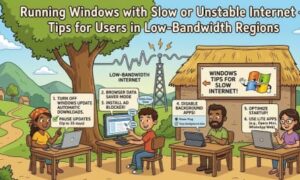
If you’ve ever waited several minutes for a webpage to load, watched a Windows update consume your entire internet connection, or lost an important file upload because your connection suddenly disappeared, you’re not alone. Millions of Windows users around the world deal with slow, expensive, or unreliable internet every day.
While many software companies assume that everyone has access to fast broadband, the reality is very different. In rural communities, developing regions, remote work locations, and areas with limited infrastructure, internet connections can be slow, unstable, or capped by strict monthly data limits.
The good news is that Windows offers several ways to reduce data usage and improve your experience, even on a poor connection. With a few simple adjustments, you can make your PC feel more responsive, save valuable bandwidth, and avoid unnecessary frustration.
In this guide, we’ll explore practical tips that help Windows users get the most from low-bandwidth internet connections.
1. Set Your Connection as a Metered Network
One of the first settings every user with limited internet should enable is the Metered Connection option.
When Windows detects a metered network, it reduces background downloads and limits certain automatic updates.
To enable it:
- Open Settings
- Go to Network & Internet
- Select your Wi-Fi or Ethernet connection
- Turn on Set as metered connection
This simple setting can dramatically reduce unwanted background data usage.
2. Control Windows Updates
Windows updates are important for security, but downloading several gigabytes over a slow connection can make your internet nearly unusable.
Instead of allowing updates whenever Windows chooses:
- Pause updates during busy workdays.
- Schedule updates overnight if your internet is less congested.
- Download feature updates only when you have access to faster internet.
You should never ignore security updates forever, but delaying large downloads until a better time can save both bandwidth and frustration.
3. Disable Unnecessary Startup Apps
Many applications automatically start when Windows boots. Some of them immediately connect to the internet to sync files, check for updates, or download content.
To reduce background traffic:
- Press Ctrl + Shift + Esc
- Open Task Manager
- Select the Startup tab
- Disable apps you rarely use
Cloud storage, messaging apps, gaming launchers, and media software often consume bandwidth without you noticing.
4. Pause Cloud Synchronization
Cloud storage services are incredibly useful, but they continuously upload and download files.
If you’re using services like OneDrive, Dropbox, or Google Drive, consider pausing synchronization while working on a slow connection.
Most cloud applications allow you to:
- Pause syncing for several hours
- Sync only selected folders
- Upload files manually
This prevents your internet from becoming saturated while you browse or attend online meetings.
5. Use Lightweight Browsers
Modern web browsers are powerful but can also consume considerable bandwidth.
To improve browsing performance:
- Close unused tabs.
- Disable unnecessary extensions.
- Block autoplay videos.
- Enable browser data-saving features when available.
Keeping fewer tabs open also reduces memory usage, making older computers feel faster.
6. Turn Off Automatic App Updates
Microsoft Store apps often update automatically in the background.
While updates are useful, they can quickly consume limited data.
To control this:
- Open Microsoft Store.
- Open your profile settings.
- Disable automatic app updates.
You can then update apps manually whenever you have access to better internet.
7. Reduce Background Data Usage
Many Windows applications continue communicating with online services even when you’re not actively using them.
Examples include:
- Weather widgets
- News feeds
- Live Tiles
- Background sync services
Disabling unnecessary background activity saves bandwidth and improves overall system responsiveness.
8. Optimize Video Streaming
Streaming video is often the biggest consumer of internet data.
Instead of watching everything in HD or 4K:
- Choose 480p or 720p resolution.
- Disable autoplay.
- Download videos when connected to faster Wi-Fi.
- Lower video quality during online meetings.
The visual difference is often minor, while the bandwidth savings are substantial.
9. Download Files During Off-Peak Hours
Some internet providers experience less congestion late at night or early in the morning.
If possible:
- Schedule large downloads overnight.
- Download software updates during off-peak times.
- Sync cloud storage after working hours.
This strategy can improve download speeds while minimizing disruption during the day.
10. Keep Your Browser Clean
Old cache files, unnecessary extensions, and excessive cookies can slow browsing.
Every few weeks:
- Clear browser cache.
- Remove unused extensions.
- Delete browsing data.
- Restart your browser.
A cleaner browser often feels noticeably faster, especially on slower systems.
11. Use Offline Features Whenever Possible
Many applications now support offline functionality.
Examples include:
- Offline Microsoft Office documents
- Downloaded maps
- Offline email
- Downloaded PDFs
- Saved web pages
Working offline reduces constant internet usage and lets you stay productive even when your connection drops.
12. Compress Files Before Uploading
Uploading large files over a slow connection can take hours.
Before sending documents:
- Compress folders into ZIP archives.
- Resize large images.
- Convert videos to lower resolutions.
- Remove unnecessary files.
Smaller uploads finish faster and are less likely to fail if the connection becomes unstable.
13. Limit Devices Sharing the Same Connection
Even if your internet plan is slow, multiple devices using it simultaneously make things worse.
Whenever possible:
- Pause downloads on other computers.
- Disconnect unused smartphones.
- Stop smart TVs from streaming.
- Delay gaming updates.
Reducing network congestion gives your Windows PC more available bandwidth.
14. Use Ethernet Instead of Weak Wi-Fi
Sometimes the issue isn’t your internet provider—it’s the wireless signal.
If your router is nearby:
- Connect using an Ethernet cable.
- Move closer to the router.
- Reduce obstacles between your PC and the router.
A stable wired connection often performs much better than weak Wi-Fi, especially in larger homes.
15. Restart Your Router Occasionally
Routers can become less responsive after running continuously for weeks.
Restarting your router every few weeks may:
- Refresh the connection
- Clear temporary issues
- Improve stability
- Restore better speeds
It’s a simple maintenance habit that often solves mysterious connection problems.
16. Monitor Data Usage
Windows includes built-in tools that show which applications consume the most internet data.
Open:
Settings → Network & Internet → Data Usage
You’ll quickly identify apps using excessive bandwidth and decide whether they need internet access all the time.
17. Avoid Downloading Multiple Files at Once
When bandwidth is limited, downloading several large files simultaneously usually slows everything down.
Instead:
- Download one file at a time.
- Finish important downloads first.
- Queue less urgent downloads for later.
This often results in faster completion times overall.

Living with slow or unstable internet doesn’t mean you have to struggle every time you use your Windows PC. A few thoughtful adjustments can dramatically improve your daily experience.
By enabling metered connections, managing updates, reducing background activity, pausing cloud synchronization, and optimizing downloads, you can make the most of every megabyte. These small changes not only save bandwidth but also help your computer remain responsive during work, study, and entertainment.
Technology should adapt to your environment—not the other way around. Whether you’re working remotely, studying online, or simply browsing the web, these practical Windows tips can help you stay productive even when internet access is limited.
Extra posts:
 Advanced Task Manager Tips for Power Users in Windows 11
  How to Improve Internet Speed with DNS Tweaks in Windows 11
  Windows 11 Slow? 15 Fixes to Boost Performance (Expert Guide)
  Top 10 Windows 11 Tips Every Beginner Should Know
  Microsoft Defender Advanced Protection Tips for Windows 11
  Storage Sense and Disk Cleanup Tips in Windows 11