
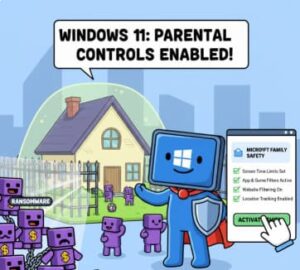
The internet has become a big part of our daily lives. Children use computers, phones, and tablets for learning, entertainment, and communication. This is great—technology helps kids grow, learn new skills, and explore the world. But at the same time, it also opens the door to risks such as inappropriate content, cyberbullying, unhealthy screen time habits, and online strangers.
That is why parental controls are important. They help create a safe digital environment so children can benefit from technology while staying protected. One of the easiest and most trusted tools for parental control is Microsoft Family Safety. It allows parents to monitor online activity, limit screen time, block unsafe websites, control app usage, and track device location.
In this easy guide, you will learn how to set up parental controls with Microsoft Family Safety, step by step, even if you are not tech-savvy.
What Is Microsoft Family Safety?
Microsoft Family Safety is a free tool from Microsoft that helps parents manage and protect their child’s digital activity across Windows PCs, Xbox consoles, and Android devices. If you have a Microsoft account, you already have access to this feature.
With Microsoft Family Safety, you can:
- Monitor screen time
- Block inappropriate websites and apps
- Set usage time limits
- Get reports of online activity
- Share and track location
- Monitor purchases
- Protect your child on Windows and Xbox devices
It is simple to set up and works across multiple devices, making it useful for families with more than one child.
Step 1: Create a Microsoft Account
Before using Microsoft Family Safety, both the parent and child need Microsoft accounts. If you already have them, you can skip this step.
How to Create a Microsoft Account
- Go to the Microsoft account website.
- Click Create Account.
- Enter your email or phone number and set up a password.
- Follow the instructions to complete the setup.
Repeat the same steps to create your child’s account.
Step 2: Install Microsoft Family Safety App
You can use Family Safety through a web browser or a mobile app. The app is available for:
- Android
- iPhone
- Windows PCs
- Xbox consoles
How to Install the App
- Go to the Google Play Store or Apple App Store.
- Search for Microsoft Family Safety.
- Download and install the app.
- Sign in with your parent Microsoft account.
Step 3: Create Your Microsoft Family Group
Once logged in, you will need to create a family group.
Steps
- Open the Family Safety app or website.
- Select Add a Family Member.
- Enter your child’s Microsoft email.
- Send an invite.
Your child will need to log in and accept the invitation. Once accepted, you now have full access to set parental controls.
Step 4: Enable Screen Time Limits
Children can often spend hours on devices without realizing how much time has passed. Screen time limits help create healthy habits.
How to Set Screen Time
- Go to your Family Safety dashboard.
- Select your child’s profile.
- Click Screen Time.
- Choose:
- Daily time limit (for example, 2 hours per day)
- Specific schedules (for example, 6 PM to 8 PM only)
- Save your settings.
Time limits apply to Windows PCs and Xbox consoles. You can also set limits for individual apps.
Step 5: Block Inappropriate Websites
The internet has many useful and educational websites—but also unsafe or adult content. Microsoft Family Safety allows you to block websites that are harmful.
How to Block Websites
- Open your child’s profile.
- Go to Content Filters.
- Turn on Filter Inappropriate Websites.
- Add specific websites to the block list.
You can also toggle Allow only approved sites if you want your child to access only websites you manually approve.
Step 6: Control Apps and Games
Children may play games longer than expected or use apps that are not age-appropriate. Microsoft Family Safety lets you filter apps based on age rating and block or allow them manually.
Steps
- Open Content Filters under your child’s profile.
- Select Apps and Games.
- Choose:
- Age restrictions
- App blocking
- Time limits for individual apps
This gives you better control over what your child can install or use.
Step 7: Set Activity Reports
You can receive weekly or daily reports of your child’s digital activities. These reports give you insights like:
- Which websites they visit
- How much time they spend online
- What apps they use
- Games played
- Search history
How to Enable Reports
- Go to the parent dashboard.
- Turn on Activity Reporting.
Reports will be emailed to you regularly and can also be viewed inside the app.
Step 8: Location Sharing (Optional)
If your child uses a mobile device, you can turn on location sharing. This allows you to view their real-time location and location history.
How to Enable Location Tracking
- Open the Family Safety app.
- Select your child’s device.
- Turn on Share My Location.
This feature provides peace of mind, especially when kids are away from home.
Step 9: Manage Purchases
Microsoft Family Safety prevents children from making unwanted purchases online without your permission.
How to Control Purchases
- Go to Spending in your child’s profile.
- Turn on:
- Purchase notifications
- Permission required for purchases
- Spending limits
You can also add funds to their account safely.
Final Tips for Parents
- Talk openly with your child about why parental controls exist.
- Balance monitoring with trust.
- Review settings regularly as your child grows.
- Use the tool as guidance—not punishment.
Microsoft Family Safety is not just a control system—it is a helpful tool that supports safe online learning and balanced digital habits.
Extra posts:
 Configuring Windows Firewall for Maximum Safety
  Understanding Google Family Guide to Keep Connected and Safe
  How to Set Up Google Family Link to Supervise Your Child (2026)
  Google Family Link Settings: A Comprehensive Guide
  April 2019 CU for SharePoint 2013 product family is available for download
  New member of the Xbox One family – the Xbox One S All-Digital Edition