

If you run a small business, you already know your data is one of your most valuable assets — and protecting it doesn’t have to be complicated or expensive. In Microsoft 365 and similar platforms, three powerful tools help you control who sees your information, how it’s shared, and under what conditions people can access it: sensitivity labels, DLP (Data Loss Prevention), and conditional access.
Let’s break them down into plain language.
1. Sensitivity Labels – Your Digital “Stickers” for Data
Imagine you run an office and keep files in cabinets. You might put a red “Confidential” sticker on certain folders, a green “Internal Use” sticker on others, and leave some unmarked.
Sensitivity labels are like those stickers, but for your digital documents and emails.
They:
- Mark the file with a label (e.g., Confidential, Public, Internal).
- Apply rules automatically (e.g., encrypting a Confidential file so only certain people can open it).
- Travel with the file, so protection remains even if it’s emailed or downloaded.
Why it matters:
Even if someone accidentally forwards a sensitive file, the protection rules still apply. It’s like having a lock on the document itself.
2. Data Loss Prevention (DLP) – Your “Oops-Proof” Safety Net
Think of DLP as a digital security guard that stops you from sending sensitive information to the wrong place — even by accident.
DLP scans your documents and emails for things like:
- Credit card numbers
- Social Security numbers
- Customer details
If it spots sensitive info being shared inappropriately (for example, an employee trying to email customer data to a personal Gmail account), DLP can:
- Block the action
- Show a warning message
- Log the attempt for review
Why it matters:
It reduces human error, which is one of the biggest causes of data leaks.
3. Conditional Access – Your Digital “Bouncer” at the Door
Imagine a bouncer at an exclusive club who checks IDs, dress codes, and guest lists before letting anyone in.
Conditional access works the same way for your business systems:
- It can allow or block sign-ins based on conditions you set.
- Examples:
- Only allow logins from certain countries.
- Require multi-factor authentication (MFA) if someone signs in from a new device.
- Block access if the device isn’t secure or up-to-date.
Why it matters:
It stops attackers who might have a stolen password from logging in from an unknown location or device.
Bringing It All Together
Here’s how they work in harmony:
- Sensitivity labels make sure the file itself is protected.
- DLP stops sensitive info from accidentally leaving your organization.
- Conditional access ensures only the right people, under the right conditions, can log in and access your data.
For a small business, these tools are like having:
- A lock on your files (sensitivity labels),
- A watchdog for outgoing information (DLP),
- And a door guard for your systems (conditional access).
How to Apply These Tools in Microsoft 365
You don’t need to be a tech pro — just follow these basic steps. These examples are for Microsoft 365 Business Premium, but the ideas are similar in other platforms.
1. Sensitivity Labels
Goal: Tag and protect files and emails.
Steps:
- Sign in to the Microsoft 365 compliance center: https://compliance.microsoft.com
- Go to Information protection → Labels.
- Click Create a label and give it a clear name (e.g., Confidential – Internal Only).
- Set the rules:
- Encrypt the file (so only certain people can open it).
- Mark the document with a header/footer.
- Restrict sharing.
- Publish the label so it appears in Word, Excel, Outlook, etc.
- Start applying the label to your important files and emails.
💡 Tip: You can also set rules to automatically label documents with certain keywords or data types.
2. Data Loss Prevention (DLP)
Goal: Prevent sensitive information from leaking accidentally.
Steps:
- In the compliance center, go to Data loss prevention.
- Click Create policy.
- Choose the type of data to protect (e.g., Financial, Medical, Custom keywords).
- Select where the rule applies (Exchange email, SharePoint, OneDrive, Teams).
- Decide what happens if a rule is triggered:
- Show a warning
- Block the action
- Send an alert to an admin
- Turn on the policy.
💡 Tip: Start with “warning only” mode so employees learn without being blocked, then switch to “block” mode later.
3. Conditional Access
Goal: Control who can log in, from where, and under what conditions.
Steps:
- Sign in to the Azure Active Directory admin center: https://aad.portal.azure.com
- Go to Security → Conditional Access.
- Click New policy and name it (e.g., Require MFA for Remote Access).
- Select Users or groups to apply it to.
- Choose Cloud apps (e.g., Microsoft 365).
- Set Conditions:
- Require MFA if sign-in is from outside your country.
- Block logins from risky devices.
- Save and enable the policy.
💡 Tip: Always test with a small group before applying to everyone, so you don’t accidentally lock out your team.
Quick Start Plan for a Small Business
- Week 1: Create one Confidential sensitivity label and start tagging important files.
- Week 2: Add a DLP policy to warn when customer or payment data is emailed externally.
- Week 3: Enable a conditional access policy requiring MFA for all accounts.
With these steps, you’ll have basic but strong protections in place within a month.
You don’t need a huge IT department to use these features. Microsoft 365 Business Premium includes them, and setting them up can be done gradually. Start small — label your most sensitive documents, add a DLP policy for customer data, and enable MFA through conditional access.
Extra posts:
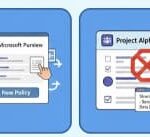 How to Use Microsoft Purview Data Loss Prevention (DLP) to Protect Sensitive Data
  Protecting Your Data A Guide to Microsoft 365 Backup Solutions
 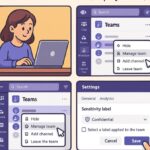 How To Use Sensitivity Labels in Microsoft Teams (Step-by-Step Guide)
  Sensitivity Labels vs. Copilot Creating an AI Policy That Honors Information Protection (MIP)
 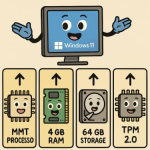 Windows 11 System Requirements Explained Simply
 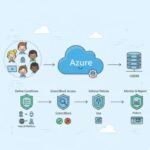 How to Implement Azure AD Conditional Access Policies Step-by-Step