
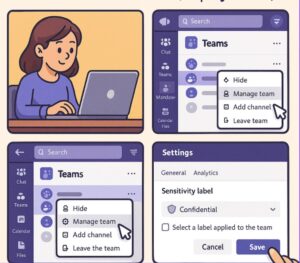
Collaboration happens fast — and often across teams, departments, and even organizations. While this speed increases productivity, it also increases the risk of sharing sensitive information unintentionally. This is where Sensitivity Labels in Microsoft Teams become incredibly important.
Sensitivity labels help organizations protect data by controlling how information is accessed, shared, and stored. If you’re using Microsoft Teams and want to keep confidential conversations, files, and meetings secure, learning how to use sensitivity labels is essential.
In this blog , we’ll walk through what sensitivity labels are, why they matter, and how to use sensitivity labels in Teams step by step, even if you’re not a technical expert.
What Are Sensitivity Labels in Microsoft Teams?
Sensitivity labels are part of Microsoft Purview Information Protection. They allow organizations to classify and protect data based on its sensitivity level. In Microsoft Teams, sensitivity labels can control:
- Who can access a team
- Whether external users can join
- If content can be shared
- Meeting security settings
- Data protection rules for files and chats
For example, a “Confidential” label can restrict guest access, while a “Public” label allows broader collaboration.
Why Sensitivity Labels Matter in Teams
Microsoft Teams is often used for discussions involving financial data, HR information, legal documents, and strategic plans. Without proper controls, sensitive information can easily fall into the wrong hands.
Here’s why sensitivity labels are crucial:
- Prevent data leaks by limiting access
- Meet compliance requirements (GDPR, HIPAA, ISO, etc.)
- Standardize security across teams
- Educate users on data sensitivity
- Protect files automatically in SharePoint and OneDrive
Simply put, sensitivity labels bring clarity and control to collaboration.
Prerequisites Before Using Sensitivity Labels
Before you start using sensitivity labels in Teams, make sure the following are in place:
- Microsoft 365 subscription that includes Microsoft Purview
- Sensitivity labels created and published by an admin
- Microsoft Teams updated to the latest version
- Appropriate user permissions
If labels are not visible in Teams, your Microsoft 365 administrator may need to enable them first.
Step-by-Step: How To Use Sensitivity Labels in Teams
Step 1: Create Sensitivity Labels (Admin Task)
This step is usually done by a Microsoft 365 administrator.

- Go to Microsoft Purview portal https://purview.microsoft.com/
- Select Information Protection
- Click Sensitivity labels
- Choose Create a label
- Name the label (e.g., Public, Internal, Confidential)
- Configure protection settings like:
- Encryption
- Access restrictions
- Content marking
- Save and publish the label
Once published, the label becomes available in Microsoft Teams.

Step 2: Enable Sensitivity Labels for Teams
After creating labels, ensure they’re enabled for Teams:
- In Microsoft Purview, open the label
- Go to Groups & Sites settings
- Turn on Microsoft Teams support
- Configure:
- Privacy (Public or Private)
- Guest access
- External sharing
- Save changes
This ensures the label works specifically within Teams environments.

Step 3: Apply a Sensitivity Label When Creating a Team
When users create a new Team:
- Open Microsoft Teams
- Click Join or create a team
- Select Create team
- Choose From scratch or From a group
- Before finalizing, select a Sensitivity label
- Complete team setup
The label will automatically enforce the security rules defined by the admin.
Step 4: Change Sensitivity Label for an Existing Team
If the data sensitivity changes over time, you can update the label:
- Open the Team in Microsoft Teams
- Click the three dots (More options)
- Select Edit team
- Choose a new Sensitivity label
- Save changes
⚠️ Note: You must be a team owner to change labels.
Step 5: Use Sensitivity Labels in Teams Meetings
Sensitivity labels can also be applied to meetings:
- Schedule a meeting in Teams Calendar
- Open Meeting options
- Select a Sensitivity label
- The label controls:
- Lobby settings
- Recording permissions
- Chat access
- Screen sharing
This is especially useful for confidential or executive meetings.
Step 6: Protect Files Shared in Teams Automatically
When a Team has a sensitivity label:
- Files shared in chats are stored in OneDrive
- Files in channels are stored in SharePoint
- The same sensitivity label is automatically applied to these files
This ensures consistent data protection without manual effort.
Best Practices for Using Sensitivity Labels in Teams
To get the most value from sensitivity labels:
- Use clear, simple label names
- Avoid creating too many labels
- Train employees on when to use each label
- Regularly review label settings
- Combine labels with DLP policies
A well-planned labeling strategy makes security easier, not harder.
Common Issues and Troubleshooting
Labels not showing in Teams?
- Wait up to 24 hours after publishing
- Check admin permissions
- Ensure Teams support is enabled for labels
Can users override labels?
- Only if admins allow it
Do labels affect performance?
- No noticeable impact on Teams performance
Sensitivity labels in Microsoft Teams are a powerful way to protect your organization’s data without disrupting collaboration. By clearly defining access rules and automating protection, they reduce human error and improve compliance.
Whether you’re managing a small team or a large enterprise, implementing sensitivity labels is a smart step toward secure and organized teamwork.
Start small, educate your users, and let Microsoft Teams do the heavy lifting for data protection.
Extra posts:
 Integrating Copilot in Microsoft Teams Channels and Projects: A Step-by-Step Guide
  Publishing and Sharing Your Agent Across Microsoft Teams: A Complete Step-by-Step Guide
  Protecting Your Business Data Sensitivity Labels, DLP, and Conditional Access Explained Simply
  Sensitivity Labels vs. Copilot Creating an AI Policy That Honors Information Protection (MIP)
  Unlock Marketing Superpowers with Copilot in Microsoft 365 A Step-by-Step Guide
  Mastering Microsoft Designer A Step-by-Step Guide, Benefits, and Use Cases