
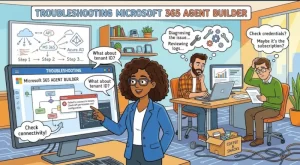
A Microsoft 365 Agent Builder agent can look perfectly configured and still fail when a real user tries it. The symptoms are often deceptively simple: the agent returns poor answers, ignores a SharePoint document, refuses to share, fails to publish, or works for the author but not for everyone else.
The mistake is treating these as purely “AI” problems.
Most Microsoft 365 Agent Builder issues come from something much more concrete: permissions, knowledge-source configuration, tenant policies, network access, unsupported scenarios, or differences between the person building the agent and the person using it.
This guide walks through the most common troubleshooting paths and shows how to isolate the problem before rebuilding the agent from scratch.
Start by Identifying Where the Failure Occurs
Before changing instructions or adding more knowledge sources, establish where the agent breaks.
Microsoft 365 Agent Builder supports declarative agents that can use instructions, knowledge sources, and capabilities such as code interpreter and image generation. You can build and test these agents directly in Microsoft 365 Copilot.
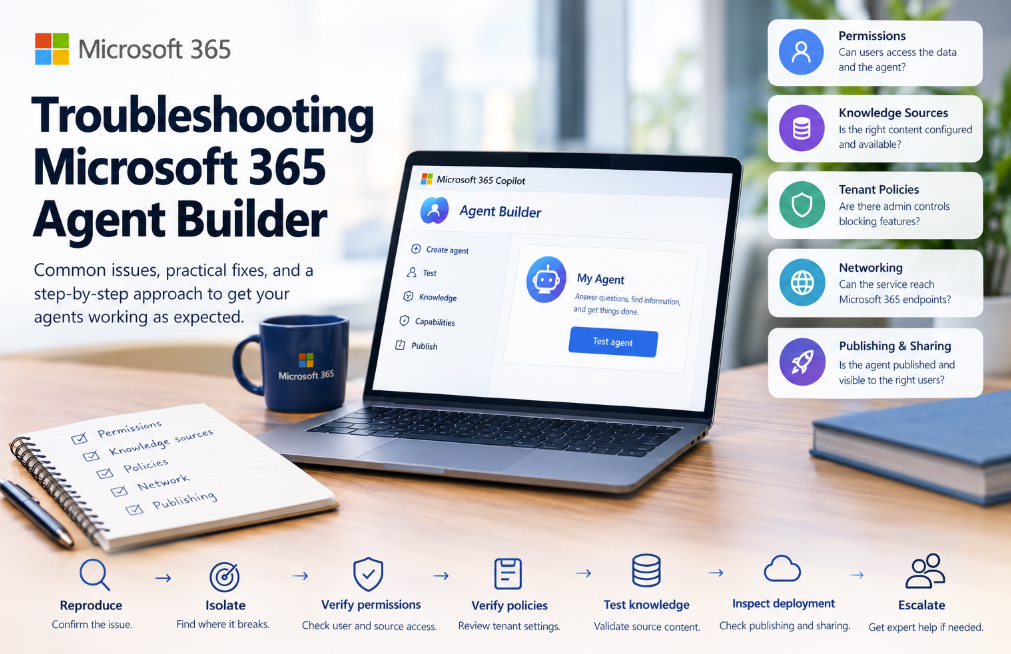
A useful troubleshooting model is to divide failures into five layers:
- Authoring — Can you create and configure the agent?
- Knowledge — Can the agent retrieve the information it needs?
- Access — Can the current user access that information?
- Runtime — Does the agent behave correctly when prompted?
- Sharing and publishing — Can other users discover and use it?
This distinction matters. If the agent works in the test pane but fails for another employee, changing the prompt probably won’t solve the problem. You should investigate access and sharing instead.
When the Agent Gives Incorrect or Incomplete Answers
Poor answers are often blamed on the model first. Start with the knowledge configuration.
Agent Builder can use several knowledge sources, including SharePoint and OneDrive content, web search, embedded files, Microsoft 365 Copilot connectors, Dataverse, Teams content, email, and other Microsoft 365 sources, depending on the scenario and licensing.
Check the source before rewriting the instructions
Suppose you’ve built an HR policy agent and added a SharePoint document containing the company’s leave policy. The agent responds with outdated information.
Don’t immediately add more instructions such as:
“Always use the latest HR policy document.”
First verify:
- The document actually contains the expected information.
- The agent has the correct SharePoint location configured.
- The user asking the question has permission to access the document.
- The source is available under the user’s licensing and tenant configuration.
- There isn’t another source providing conflicting information.
This is particularly important because Agent Builder respects Microsoft 365 access controls. Giving someone access to the agent does not automatically mean they should receive content from every underlying knowledge source.
Test with a narrowly scoped question
Instead of asking:
“Explain our company’s vacation policy.”
Try something much easier to validate:
“According to the 2026 Leave Policy document, how many annual leave days are provided?”
A precise test makes it easier to determine whether the problem is retrieval, interpretation, or instruction following.
SharePoint Permissions Are a Common Hidden Failure
One of the most confusing scenarios is an agent that works for its creator but produces incomplete results for another user.
The reason may be straightforward: the second user cannot access the underlying SharePoint content.
Microsoft documents specific sharing issues in Agent Builder. If the agent cannot share certain knowledge sources, the owner may need to update the relevant SharePoint permissions manually. If knowledge access isn’t granted to intended users, those users won’t receive responses based on those files.
A practical test is to compare access between two accounts:
| Test | Agent Owner | End User |
|---|---|---|
| Can open the SharePoint file? | Yes | ? |
| Can open the SharePoint folder? | Yes | ? |
| Can access the site? | Yes | ? |
| Can use the agent? | Yes | ? |
| Gets source-based answers? | Yes | ? |
If the results differ, investigate Microsoft 365 permissions before changing the agent’s instructions.
Also watch for automatic sharing limitations. Microsoft currently documents scenarios where automatic sharing of SharePoint files and folders is limited, meaning permissions may need to be updated manually for the intended audience.
When the Agent Cannot Connect to a Knowledge Source
Another frequent problem is that a knowledge option appears available but doesn’t actually produce useful results.
Start with tenant configuration.
Agent Builder requires HTTPS access to *.api.powerplatform.com for authoring, configuration, publishing, and sharing APIs. A firewall or proxy configuration that blocks this endpoint can interfere with Agent Builder operations.
For enterprise environments, this is worth checking early. If one user can build agents while another environment consistently fails, compare:
- Proxy configuration
- Firewall rules
- Conditional Access policies
- Microsoft 365 service availability
- User licensing
- Power Platform environment configuration
- Tenant-level Copilot policies
Don’t assume a browser refresh will fix an infrastructure-level problem.
Check Tenant Policies Before Blaming the UI
Microsoft 365 Agent Builder is affected by administrative controls.
A good example is web search. If an administrator disables web content through the Microsoft 365 Copilot Allow web search in Copilot policy, web content can be blocked as a knowledge source even though the Web content toggle in the Agent Builder interface may still appear enabled. Microsoft identifies this as a UI limitation: the tenant policy takes precedence.
This creates a particularly confusing troubleshooting experience because the configuration screen can appear correct.
For enterprise troubleshooting, always distinguish between:
What the UI allows you to select
and
What the tenant actually permits the service to do.
The second one wins.
When the Agent Works for You but Not Other Users
This is one of the strongest indicators that the problem isn’t the agent’s basic configuration.
Run a controlled test with at least two users:
- The agent creator
- A representative end user
Use exactly the same prompt and compare the results.
If the creator gets a correct answer but the end user doesn’t, investigate:
- Source permissions
- User licensing
- Group membership
- Agent sharing configuration
- Tenant policies
- Availability of the relevant knowledge source
This approach is much faster than repeatedly modifying the agent instructions.
It also exposes a key architectural principle: agent access and data access are separate concerns.
An employee may be allowed to use an agent without being entitled to retrieve every document that the agent’s creator can see.
Troubleshooting Publishing and Sharing Errors
If the agent works during testing but fails during sharing, treat it as a deployment problem.
Microsoft documents several sharing-related failure modes, including generic internal service errors, insufficient privileges for updating file permissions, and cases where agent sharing succeeds but users still don’t receive knowledge-based responses because the underlying sources weren’t shared correctly.
For a sharing failure, check:
- Does the target user or group exist in the organization?
- Can the agent owner access the relevant files?
- Can the intended users access those files?
- Are SharePoint permissions correctly configured?
- Is the agent actually published or merely saved as a draft?
- Is the user’s tenant experience supported?
If the problem occurs only after publication, don’t automatically rebuild the agent. Compare the published experience with the test experience.
Know When Agent Builder Is the Wrong Tool
Troubleshooting also means recognizing when you’re asking Agent Builder to do something outside its intended scope.
Agent Builder is designed for creating declarative agents relatively quickly inside Microsoft 365 Copilot. However, it does not provide authoring for actions that integrate external services. Microsoft recommends moving scenarios that require low-code actions, connectors, or workflows into Microsoft Copilot Studio.
For example, imagine an agent that needs to:
- Look up an external CRM record
- Create a ticket in a third-party platform
- Call an external API
- Execute a business workflow
- Perform a transactional operation
If your troubleshooting process keeps circling around missing action functionality, the issue may not be configuration at all.
It’s an architecture decision.
Move the scenario to the appropriate platform rather than trying to force Agent Builder to behave like a full workflow or integration platform.
Use a Structured Troubleshooting Checklist
When an Agent Builder issue reaches the IT or platform team, collect evidence before escalating.
Capture:
Agent configuration
- Agent name
- Instructions
- Knowledge sources
- Enabled capabilities
User context
- User experiencing the issue
- License
- Relevant Microsoft 365 group membership
- Whether the user can access the source directly
Reproduction
- Exact prompt
- Expected response
- Actual response
- Whether the issue occurs consistently
Environment
- Microsoft 365 client being used
- Browser or desktop application
- Tenant policies
- Network/proxy configuration
Deployment state
- Draft or published agent
- Sharing configuration
- Whether the issue occurs for the creator, end users, or both
For difficult retrieval or orchestration problems, Microsoft also provides developer-mode testing in Microsoft 365 Copilot. Developer mode can expose debugging information when the orchestrator searches enterprise knowledge, capabilities, or skills, which can help determine what the agent actually attempted to use.
The Fastest Path to a Fix
The most effective troubleshooting sequence is surprisingly simple:
Reproduce → isolate → verify permissions → verify policies → test knowledge → inspect deployment → escalate.
Don’t start by rewriting the prompt.
If the agent works for the author but not the user, investigate permissions. If the knowledge source is ignored, validate retrieval and source configuration. If the UI says a feature is enabled but the feature doesn’t work, inspect tenant policies. If the scenario requires external actions, reconsider whether Agent Builder is the right platform.
Microsoft 365 Agent Builder is intentionally optimized for straightforward declarative agent scenarios. The better your troubleshooting process distinguishes configuration problems from platform boundaries, the less time you’ll spend making random changes.
Practical Takeaway: Troubleshoot the Layer, Not the Symptom
When an Agent Builder agent fails, resist the temptation to treat every problem as an instruction-writing issue.
Start with the layer where the failure occurs.
Check the source. Check the user’s access. Check tenant policies. Check networking. Then check the agent’s instructions and runtime behavior.
That approach gives solution architects and IT teams something more valuable than a collection of fixes: a repeatable troubleshooting method that scales as the number of agents in the organization grows.
Extra posts:
 What Is Microsoft 365 Agent Builder? A Beginner’s Guide
  Microsoft 365 Copilot Agent Builder Gets a Major Usability Update: What’s Changing in August 2026
  When to Choose Agent Builder Instead of Power Apps: A Practical Guide for Modern Businesses
  Microsoft 365 E7 and Agent 365 Are Now Generally Available: The Future of AI-Powered Work Has Arrived
  Microsoft 365 Copilot: Meet Microsoft Scout, the Always-On Personal Agent Changing How Work Gets Done
  Microsoft Expands Microsoft 365 Copilot Legal Agent Worldwide: AI-Powered Contract Review Comes to Global Frontier Users