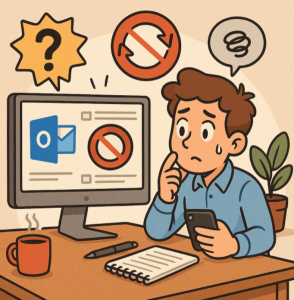
Microsoft Outlook is one of the most widely used email clients for both personal and professional communication. But sometimes, Outlook can stop syncing your emails, calendar, or contacts—leaving you frustrated and disconnected. If you’ve noticed that new emails aren’t coming in, your sent emails are stuck, or your calendar updates aren’t showing, don’t panic. Here are some practical steps to get Outlook syncing again.
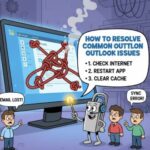
1. Check Your Internet Connection
It may sound obvious, but syncing problems often come down to poor or unstable connectivity. Make sure you’re connected to a stable Wi-Fi or wired network. If other apps and websites are loading slowly, resolve your internet connection first.
2. Confirm the Server Status
Sometimes the issue isn’t on your end. Email services (like Outlook.com, Microsoft 365, Gmail, or Exchange servers) can experience downtime. Visit Microsoft’s Service Status page to check if there are any known outages.
3. Restart Outlook and Your Device
A simple restart can resolve temporary glitches. Close Outlook completely (check the Task Manager on Windows or Force Quit on Mac if necessary) and reopen it. If that doesn’t help, reboot your computer or device.
4. Verify Account Settings
If your email provider’s server settings have changed, Outlook may not sync properly. Go to:
- File > Account Settings > Account Settings > Email
- Select your account and click Change
- Check incoming and outgoing server details against your provider’s recommended settings
5. Check Offline Mode
Sometimes Outlook gets stuck in Offline Mode. To fix this:
- On the Send/Receive tab, check if Work Offline is selected.
- If it’s highlighted, click it to go back online.
6. Update Outlook
Running an outdated version of Outlook may cause sync issues. Install the latest updates by going to:
- File > Office Account > Update Options > Update Now
7. Clear the Outlook Cache (OST File)
Corrupted cache files can stop syncing. To fix this:
- Close Outlook.
- Navigate to
C:\Users\<YourName>\AppData\Local\Microsoft\Outlook. - Locate the
.ostfile for your account and delete it (Outlook will rebuild it automatically).
8. Repair Your Outlook Profile
If nothing else works, repairing your Outlook profile can help:
- Go to File > Account Settings > Account Settings.
- Select your account and click Repair.
- Follow the prompts to restore proper sync functionality.
9. Re-add Your Email Account
As a last resort, remove your account from Outlook and add it again. This resets the connection with your email server.
Outlook sync issues can be frustrating, but in most cases, they’re caused by small configuration problems or temporary glitches. By following these steps—checking your connection, verifying account settings, and repairing Outlook—you should be able to restore normal syncing quickly.
If the problem persists, contact your IT administrator (if you’re on a work account) or your email provider’s support team for additional help.