
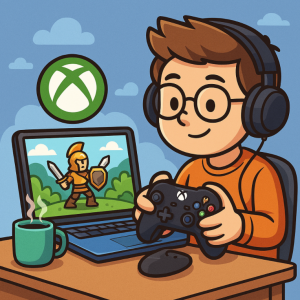
Windows 11 has been designed with gaming at its core, and if you’re an Xbox fan, the experience gets even better. Whether you own an Xbox console or just want to play Xbox Game Pass titles on your PC, Microsoft has made it simple to get started. Here’s a step-by-step guide to diving into gaming on Windows 11 with Xbox.
1. Set Up Your Microsoft Account
To unlock the Xbox ecosystem on Windows 11, you’ll need a Microsoft account. This is the same account you’d use for Xbox consoles, Game Pass, or even Outlook.
- If you already own an Xbox, use the same account to sync your progress, achievements, and friends list.
- New to Xbox? You can create a free account at account.microsoft.com.
2. Install the Xbox App on Windows 11
The Xbox app is your central hub for everything Xbox on PC.
- Open the Microsoft Store on your Windows 11 device.
- Search for Xbox and install the official Xbox app.
- Once installed, sign in with your Microsoft account.
From here, you’ll be able to access your library, connect with friends, and manage Game Pass.
3. Explore Xbox Game Pass for PC
One of the easiest ways to get into gaming is through Xbox Game Pass for PC, a subscription service with access to hundreds of games across genres.
- Open the Xbox app and look for the Game Pass tab.
- Browse the library and install games directly to your PC.
- Enjoy features like EA Play access and day-one releases of Xbox Game Studios titles.
💡 Tip: If you also own an Xbox console, Game Pass Ultimate combines Game Pass for console, PC, and Xbox Cloud Gaming.
4. Connect Your Xbox Controller
For the best experience, pair an Xbox Wireless Controller with your Windows 11 PC.
- Wired: Simply plug in via USB-C.
- Wireless (Bluetooth): Hold the pairing button on your controller and connect through your PC’s Bluetooth settings.
- Xbox Wireless Adapter: For the most reliable wireless connection, use Microsoft’s official adapter.
Once connected, most Xbox-supported games will automatically recognize the controller.
5. Try Xbox Cloud Gaming (Beta)
If your PC isn’t powerful enough to run modern games, Xbox Cloud Gaming lets you stream games directly over the internet.
- Available with Game Pass Ultimate.
- Open the Xbox app or a browser, go to xbox.com/play, and start playing instantly.
- Works with controllers, and in some cases, even keyboard and mouse.
6. Use Xbox Game Bar for Performance & Social Features
Windows 11 includes the Xbox Game Bar, a built-in tool for gamers. Press Win + G to open it.
- Monitor performance (CPU, GPU, RAM usage).
- Capture screenshots and record gameplay.
- Chat with Xbox friends or join parties.
- Control Spotify or other integrations while gaming.
7. Sync Progress Between Xbox & PC
If you also own an Xbox console, your games, progress, and achievements can sync across devices.
- Cloud saves are automatic with supported games.
- Start a game on your console, continue on your PC (and vice versa).
Windows 11 makes it incredibly easy to bring the Xbox experience to your PC. From the Xbox app to Game Pass, cross-device syncing, and Xbox Cloud Gaming, there are multiple ways to jump in—whether you own a high-end gaming rig or just a standard laptop.
If you’re looking to get started, begin with the Xbox app and Game Pass, then expand into cloud gaming and controller support for the full Xbox ecosystem.
Extra posts:
 New member of the Xbox One family – the Xbox One S All-Digital Edition
  How to Personalize Your Windows 11 Desktop Like a Pro
  How to Use Virtual Desktops in Windows 11 Like a Pro
  Voice Typing in Windows 11 Dictate Like a Pro
  From Start Menu to Widgets Customizing Windows 11 Like a Pro
  Comparing Windows 11 Editions: Home vs Pro vs Enterprise vs SE