
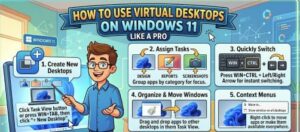
In today’s fast-paced digital world, productivity is no longer just about working harder it’s about working smarter. As a Windows expert, one of the most underrated yet powerful features I recommend mastering is Virtual Desktops in Windows 11. Whether you’re juggling multiple projects, managing remote work, or simply trying to keep your workspace clutter-free, virtual desktops can transform how you use your computer.
In this guide, you’ll learn not just how to use virtual desktops but how to use them like a pro.
What Are Virtual Desktops in Windows 11?
Virtual desktops allow you to create multiple desktop environments on a single device. Think of them as separate workspaces where you can organize apps, windows, and tasks without interference.
Instead of having dozens of open windows on one screen, you can split them across different desktops for example:
- One for work
- One for personal tasks
- One for entertainment or research
Why Virtual Desktops Matter for Productivity
Most users underestimate how much mental clutter impacts efficiency. Virtual desktops help by:
- Reducing on-screen distractions
- Organizing workflows by task or project
- Improving focus and task switching
- Creating a cleaner, more structured workspace
If you’re someone who constantly Alt-Tabs between apps, virtual desktops will be a game changer.
How to Create and Manage Virtual Desktops
1. Open Task View
You can access virtual desktops through Task View:
- Press
Windows + Tab - Or click the Task View icon on the taskbar
2. Create a New Desktop
- Click “New Desktop” at the bottom of the screen
- A new workspace appears instantly
3. Switch Between Desktops
Use these shortcuts for fast navigation:
Windows + Ctrl + Right Arrow→ Next desktopWindows + Ctrl + Left Arrow→ Previous desktop
4. Move Apps Between Desktops
- Open Task View
- Drag and drop a window into another desktop
- Or right-click the app and select Move to
Pro Tips to Use Virtual Desktops Like an Expert
Now let’s go beyond the basics. These advanced strategies will help you maximize efficiency.
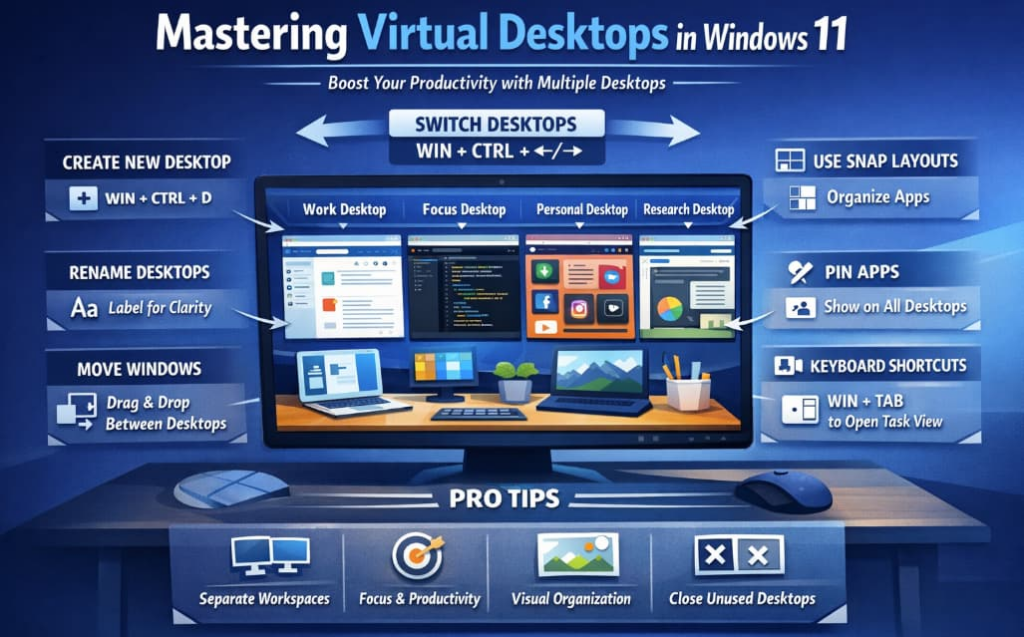
1. Assign Specific Roles to Each Desktop
Instead of randomly creating desktops, assign them clear purposes:
- Desktop 1 → Work (Email, Teams, Documents)
- Desktop 2 → Deep Focus (Coding, Writing)
- Desktop 3 → Personal (Browser, Social Media)
This structure reduces decision fatigue and keeps your workflow intentional.
2. Rename Your Desktops
By default, desktops are named “Desktop 1,” “Desktop 2,” etc.
Rename them for clarity:
- Open Task View
- Click on the desktop name
- Type a meaningful label like “Work,” “Study,” or “Projects”
This small step dramatically improves organization.
3. Use Different Wallpapers for Each Desktop
Visual separation enhances cognitive clarity.
To change backgrounds:
- Right-click a desktop in Task View
- Select Choose background
Use subtle differences (colors or themes) to instantly recognize where you are.
4. Pin Important Apps Across All Desktops
Some apps—like messaging or music—should always be accessible.
To pin:
- Right-click the app in Task View
- Select Show this window on all desktops
This keeps essential tools within reach without duplication.
5. Combine Virtual Desktops with Snap Layouts
Windows 11 introduced Snap Layouts, and combining them with virtual desktops is powerful.
Example:
- Desktop 1 → Split screen (Email + Browser)
- Desktop 2 → Full screen (Presentation or design work)
You’re not just organizing desktops—you’re optimizing layouts within them.
6. Use Keyboard Shortcuts for Speed
Power users rely on speed. Memorize these:
Windows + Ctrl + D→ Create new desktopWindows + Ctrl + F4→ Close current desktop
The less you rely on the mouse, the faster your workflow becomes.
7. Close Desktops Strategically
When you close a desktop, Windows automatically moves its apps to another desktop.
Use this to:
- Merge workflows
- Clean up unused spaces
- Reset your environment quickly
Best Use Cases for Virtual Desktops
1. Remote Work & Hybrid Jobs
Separate work tools from personal apps to maintain boundaries.
2. Students & Researchers
Use different desktops for:
- Lectures
- Assignments
- Research browsing
3. Developers & Creators
Keep environments isolated:
- Coding workspace
- Testing environment
- Documentation
4. Multi-Project Professionals
If you handle multiple clients or tasks, dedicate a desktop per project.
Common Mistakes to Avoid
Even experienced users make these mistakes:
- Too many desktops → Leads to confusion instead of clarity
- No naming system → Hard to navigate quickly
- Mixing unrelated tasks → Defeats the purpose
- Ignoring shortcuts → Slows down workflow
Keep it simple, structured, and intentional.
Advanced Workflow Strategy (Pro Level)
Here’s a professional setup I recommend:
- Desktop 1: Communication Hub
Email, chat apps, calendar - Desktop 2: Execution Zone
Main work apps, documents - Desktop 3: Research & Learning
Browser tabs, references - Desktop 4: Personal Space
Entertainment, personal browsing
Switching between these becomes second nature—and dramatically boosts efficiency.
Virtual desktops in Windows 11 are more than just a convenience—they’re a productivity framework. Once you start using them strategically, you’ll notice:
- Less clutter
- Better focus
- Faster task switching
- Improved workflow clarity
Like any powerful tool, the key is consistency. Start with 2–3 desktops, define their purpose, and build from there.
Master this feature, and you’ll be working not just faster but smarter.
Extra posts:
 Windows 11 Setting Up Virtual Desktops for Better Multitasking
  How to Record Audio and Screen Together in Windows 11: A Complete Beginner-to-Pro Guide
  How to Use Windows Terminal Like a Pro: The Ultimate Guide for Developers, IT Professionals, and Power Users
  How to Set Up Hyper-V Virtual Machines in Windows 11
  Automating Virtual Desktop Creation and Movement in Windows 11 Using Command-Line and Scripting
  How to Personalize Your Windows 11 Desktop Like a Pro