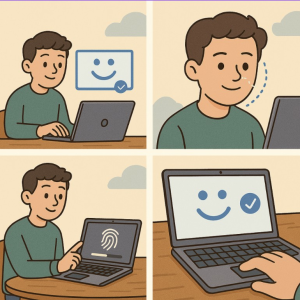
In today’s world of increasing cybersecurity threats, relying solely on passwords is no longer enough. Microsoft’s Windows Hello offers a faster, safer, and more personal way to sign in to your Windows device — using facial recognition, fingerprint scanning, or PIN authentication.
Whether you’re using a laptop with a built-in camera, a desktop with a fingerprint reader, or a Surface device, setting up Windows Hello is easy. Here’s how to get started.
What Is Windows Hello?
Windows Hello is a biometric authentication system built into Windows 10 and Windows 11. It lets you sign in to your device, apps, and even supported websites using your face or fingerprint — replacing your traditional password with something more secure and convenient.
Requirements for Windows Hello
Before setting up Windows Hello, make sure your device meets these requirements:
- Compatible hardware: An infrared (IR) camera for facial recognition or a fingerprint reader.
- Windows 10 or Windows 11 with the latest updates installed.
- Microsoft account or domain account (for business users).
You can check compatibility by going to Settings → Accounts → Sign-in options. If your device supports Windows Hello, you’ll see options for Face recognition and/or Fingerprint recognition.
How to Set Up Windows Hello Face
If your device has an IR camera:
- Open Settings → Accounts → Sign-in options.
- Under Ways to sign in, select Face recognition (Windows Hello).
- Click Set up, then choose Get started.
- Follow the on-screen instructions to look directly into your camera.
- When prompted, create a PIN as a backup login method.
Pro Tip: You can improve accuracy by clicking Improve recognition to scan your face again in different lighting conditions.
How to Set Up Windows Hello Fingerprint
If your device has a built-in or external fingerprint reader:
- Go to Settings → Accounts → Sign-in options.
- Select Fingerprint recognition (Windows Hello).
- Click Set up, then select Get started.
- Scan your finger on the sensor several times until the setup completes.
- Add a PIN for backup if you haven’t already.
You can also add multiple fingerprints (for example, both index fingers) for convenience.
Managing or Removing Windows Hello
If you ever want to remove or change your biometric data:
- Go to Settings → Accounts → Sign-in options.
- Select the sign-in option you want to manage.
- Choose Remove or Improve recognition.
Why Use Windows Hello?
Here’s why Windows Hello is worth enabling:
- 🔒 Better Security: Biometric data stays on your device — it’s never sent to the cloud.
- ⚡ Speed: Instant sign-ins without typing long passwords.
- 🧠 Smarter Login: Works seamlessly across supported apps and browsers.
Troubleshooting Tips
If setup fails or isn’t available:
- Ensure Windows is updated.
- Check that your device drivers (camera or fingerprint reader) are up to date.
- Try restarting your PC and repeating the setup.
Windows Hello is one of the simplest ways to enhance both your security and convenience. With just a quick glance or touch, you can log into your PC in seconds — no passwords required.
So, take a few minutes today to set up Windows Hello Face or Fingerprint and make your sign-ins safer, faster, and smarter.
Extra posts:
 How to Clean Install Windows 11 — Step-by-Step (The Friendly, No-Nonsense Guide)
  How to Change Taskbar Position and Icons in Windows 11 (Step-by-Step Guide)
  Customizing the Lock Screen in Windows 11 A Step-by-Step Guide to Personalize and Optimize
  How to Map Network Drives in Windows 11: A Complete Step-by-Step Guide
  How to Reset Windows 11 Without Losing Files: A Complete Step-by-Step Guide
  Step-by-Step Guide to Changing Desktop Icons in Windows 11