
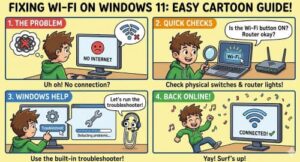
Did it happen to you that while watching a movie or trying to join a meeting, or playing game online then you find Wi-Fi is not working. Although Windows 11 brings a modern look and better performance but still Wi-Fi issues can happen at any time. The good news is that most problems are easy to fix with a few simple steps.
In this blog will show you easy troubleshooting methods to fix your Wi-Fi connection issues on Windows 11whether your device isn’t detecting Wi-Fi or the connection drops frequently, or you can’t get online at all.
Common Wi-Fi Problems on Windows 11
You might experience one or more of the following:
- Wi-Fi not showing in settings
- Wireless adapter missing or disabled
- Connected, but no internet access
- Slow or unstable Wi-Fi
- Wi-Fi keeps disconnecting
- Error connecting to a network
- Can’t connect after an update
Each of these issues has different causes—but the solutions below will help fix them in most cases.
Quick Basic Fixes You Should Try First
Before diving into advanced fixes, try these simple steps:
Restart Your PC & Router
Many network glitches are temporary.
- Turn off your PC
- Unplug your router for 30 seconds
- Plug it back in and wait until all lights stabilize
- Restart your PC
This refreshes the network settings and often solves the problem instantly.
Toggle Airplane Mode
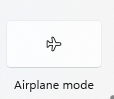
A quick reset of wireless services:
- Click Network icon in System Tray
- Turn Airplane mode ON
- Wait 10 seconds, turn it OFF
Check Wi-Fi is Enabled
Go to:
Settings → Network & Internet → Wi-Fi → Toggle ON
If the Wi-Fi option is completely missing, it may be a driver issue. Keep reading!
Step-by-Step Solutions for Wi-Fi Not Working in Windows 11
Run the Network Troubleshooter
Windows 11 includes a built-in tool that can automatically fix many problems.

- Open Settings
- Go to System → Troubleshoot → Other troubleshooters
- Click Run next to Network and Internet
Follow the prompts and apply any fixes suggested.
Reinstall or Update Wi-Fi Adapter Driver
Driver issues are a common cause of missing or unstable Wi-Fi.
- Press Windows + X
- Click Device Manager
- Expand Network adapters
- Right-click your Wi-Fi adapter
• Choose Update driver → Search automatically
• If still not working → choose Uninstall device - Restart your PC
Windows will reinstall the correct driver automatically.
Reset Network Settings
This restores everything to default and helps fix deep connectivity errors.
Go to:
Settings → Network & Internet → Advanced network settings → Network reset → Reset now
Your PC will restart. You will need to reconnect to Wi-Fi afterward.
Forget and Reconnect to the Wi-Fi Network
Sometimes stored passwords or configuration cause conflicts.
- Settings → Network & Internet → Wi-Fi → Manage known networks
- Select the network → Forget
- Reconnect by entering the password again
Turn Off VPN or Proxy (If Enabled)
VPNs and proxies can block Wi-Fi internet access.
- Disable any VPN software
- Go to Settings → Network & Internet → Proxy
and turn off Automatically detect settings if needed
Disable Power-Saving Features for Wi-Fi Adapter
Windows may turn off Wi-Fi to save power, especially on laptops.
- Device Manager → Network adapters
- Right-click Wi-Fi adapter → Properties
- Go to Power Management tab
- Uncheck:
✔ Allow the computer to turn off this device to save power
Reset TCP/IP and DNS (Command Fix)
If you’re connected but no internet access:
- Open Command Prompt as Administrator
- Run these commands one by one:
netsh winsock reset
netsh int ip reset
ipconfig /flushdns
ipconfig /release
ipconfig /renew
Restart once done.
Wi-Fi Still Slow? Try These Tips
If your Wi-Fi works but is slow or keeps dropping:
- Move closer to the router
- Reduce connected devices on the same network
- Switch between 2.4 GHz and 5 GHz bands
- Restart your router more often
- Update router firmware (check brand website)
Advanced Fix: Check Windows Update
Buggy Windows updates occasionally break Wi-Fi. Install latest patches:
Settings → Windows Update → Check for updates
If the problem started after an update, consider uninstalling it temporarily.
When to Contact Your Internet Provider
After trying all solutions, if another device also cannot get stable Wi-Fi, the issue might not be your PC.
Contact your ISP if:
- You see constant outages
- Router lights show connection failure
- Speed is much lower than your plan
- All devices lose connection randomly
Your provider may reset your service or replace faulty equipment.
Fixing Wi-Fi problems on Windows 11 doesn’t have to be stressful. With the right steps like updating drivers, restarting the router, or resetting network settings you can quickly restore fast, stable internet access.
Technology isn’t perfect but knowing how to troubleshoot Wi-Fi issues yourself saves time and frustration. Keep this guide handy for the next time your connection drops!
Extra posts:
 How to Fix Common Microsoft Teams Connection Problems
  How to Fix Windows 11 Problems Without Calling IT
  Fixing Common Windows 11 Update Errors
  OneDrive Keeps Asking for Login on Every Windows Startup? How to Fix It
  How to Move the Start Menu to the Left in Windows 11 (Like Windows 10 Style)
  Setting Up Windows Hello for Faster Logins in Windows 11