
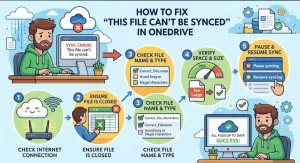
A OneDrive sync failure can be deceptively simple. You edit a document, save it, and expect it to appear in the cloud. Instead, OneDrive displays “This file can’t be synced.” The file remains on your computer, but the cloud copy is missing or outdated.
For IT professionals and developers, this is more than an annoying notification. A failed sync can affect collaboration, document versioning, automated workflows, and users who rely on OneDrive or SharePoint as part of their daily development and operations environment.
The good news: the error usually points to a manageable problem. The most common causes include an application locking the file, insufficient permissions, unsupported file or folder names, excessive path length, or a temporary OneDrive synchronization problem. Microsoft specifically recommends closing the file, checking read/write permissions, or moving the file outside the OneDrive folder and then moving it back as core troubleshooting steps.
Here’s how to work through those causes systematically.
Start by Identifying What OneDrive Is Actually Reporting
Before changing settings or resetting the sync client, open the OneDrive notification area and inspect the affected file.
The exact wording matters.
For example, OneDrive may indicate that:
- The file is being used by another application.
- OneDrive doesn’t have permission to access the file.
- The filename or folder structure isn’t supported.
- The file path is too long.
- The item cannot be synchronized because of an organizational restriction.
This distinction is important because resetting OneDrive won’t fix a file whose name contains an unsupported character. Likewise, renaming a file won’t solve a Windows permissions problem.
Treat the sync notification as a diagnostic clue rather than a generic error.
1. Make Sure the File Isn’t Locked by Another Application
One of the easiest causes to overlook is a file that’s still open.
If Word, Excel, an image editor, an IDE, or another application has an active handle on the file, OneDrive may be unable to synchronize it. Microsoft notes that files being used by another application cannot be synced until the application is finished with them.
Try this first:
- Save your work.
- Close the application using the file.
- Wait a few seconds.
- Check the OneDrive cloud icon.
- Confirm that the file begins syncing.
This is particularly relevant for developers working with generated files, configuration files, databases, or project artifacts. Some applications keep files open even after the user believes the editing operation is finished.
If the problem persists, close other applications that may have access to the file and retry.
A note about Outlook data files
Outlook .pst files deserve special attention. Microsoft supports PST files in OneDrive, but they are synchronized less frequently than many other file types to reduce network traffic.
For operational environments, don’t treat OneDrive as a general-purpose synchronization mechanism for actively used application databases or constantly changing data files.
2. Check the File and Folder Name
OneDrive and SharePoint enforce naming restrictions.
Characters such as:
" * : < > ? / \ |
aren’t allowed in OneDrive file and folder names. Leading or trailing spaces are also not allowed. Certain reserved names, including CON, PRN, AUX, NUL, and names such as desktop.ini, can also cause problems.
For example, a file named:
Project:Final?.docx
should be renamed to something such as:
Project-Final.docx
The same check applies to parent folders. A perfectly valid filename can still fail to sync if one of its containing folders has an invalid name.
If you’re troubleshooting a shared project repository, check the entire path rather than focusing only on the final filename.
3. Check Whether the File Path Is Too Long
Long paths are a common source of OneDrive synchronization headaches, especially in enterprise environments where users work with deeply nested SharePoint libraries.
Consider a path such as:
C:\Users\Alex\OneDrive - Company\Projects\2026\Client\Architecture\Documentation\Implementation\Release\Final\Approved\Very-Long-Project-Requirements-Document.docx
Every folder and character contributes to the path length.
Microsoft’s current documentation distinguishes between cloud and local limits. OneDrive and SharePoint support a decoded cloud path of up to 400 characters, while OneDrive sync has a total path limit of 520 characters. Windows File Explorer and many Office desktop applications commonly impose a much tighter 260-character path limit.
That’s why a file can sometimes exist successfully in OneDrive on the web but cause problems when synchronized to a Windows workstation.
How to fix a path-length problem
Shorten the path from the top down.
For example:
Projects > 2026 > Client Projects > Regional Accounts > Architecture Documentation > Implementation Documents > Final Deliverables
could become:
Projects > 2026 > Client-A > Architecture > Deliverables
You can also shorten the filename itself.
For stubborn cases, Microsoft recommends renaming or moving files from the OneDrive or SharePoint web interface when the local path is difficult to manipulate.
For IT teams, this is worth addressing structurally. Deep folder hierarchies and unnecessarily verbose naming conventions create recurring synchronization problems.
4. Verify Read and Write Permissions
If OneDrive reports that it doesn’t have permission to access a file, check the Windows security permissions.
On Windows:
- Right-click the affected file.
- Select Properties.
- Open the Security tab.
- Select your user account.
- Verify that you have both Read and Write permissions.
- Apply the appropriate permissions if either is missing.
Microsoft lists read/write access as a direct troubleshooting step for this specific OneDrive error.
In managed environments, don’t immediately change permissions globally. First determine why the permission is missing.
A file inherited from another user, copied from a restricted directory, created by a service account, or restored from another system can have unexpected NTFS permissions.
For enterprise troubleshooting, check both sides of the synchronization boundary:
- Local permissions: Can the OneDrive client read the file?
- Cloud permissions: Does the user’s Microsoft 365 account have access to the destination?
- Library configuration: Are there SharePoint or organizational policies affecting synchronization?
5. Move the File Out of OneDrive and Back In
If the filename, path, permissions, and file lock all look correct, try restarting synchronization for that specific item.
Microsoft’s documented workaround is straightforward:
- Close OneDrive.
- Move the problematic file to a location outside the OneDrive directory.
- Restart OneDrive.
- Wait until OneDrive reports that it is up to date.
- Move or copy the file back into the OneDrive folder.
- Wait for synchronization to complete.
This can resolve cases where the local sync state for a particular file has become inconsistent.
Don’t delete the only copy of the file as part of this process. Move it to a safe temporary location so you retain the local data while testing the synchronization state.
6. Reset OneDrive When the Problem Is Broader Than One File
If several files are failing to sync, the problem may not be the individual files at all.
At that point, consider resetting the OneDrive client.
On Windows, Microsoft documents the following reset command:
%localappdata%\Microsoft\OneDrive\onedrive.exe /reset
If Windows can’t find the executable, Microsoft also documents alternative installation paths, including:
C:\Program Files\Microsoft OneDrive\onedrive.exe /reset
After the reset, start OneDrive manually from the Start menu.
A reset rebuilds OneDrive’s local synchronization state. Microsoft states that resetting OneDrive does not delete your files or data, although it disconnects the sync connections and performs a full synchronization afterward. If you previously selected only certain folders for synchronization, you’ll need to configure those selections again.
Because a reset can trigger a full sync, it’s better treated as a troubleshooting step rather than the first response to a single problematic file.
A Practical Troubleshooting Order for IT Teams
When supporting multiple users, consistency matters. A useful troubleshooting sequence is:
- Read the OneDrive error message.
- Close the application using the file.
- Check the filename and parent folders.
- Check the full path length.
- Verify local read/write permissions.
- Confirm the file isn’t subject to a cloud or organizational restriction.
- Move the file out of OneDrive and back in.
- Reset OneDrive if multiple files or sync connections are affected.
This order starts with low-impact changes and progressively moves toward client-level remediation.
Don’t Confuse a Sync Error With a SharePoint Problem
OneDrive and SharePoint are closely connected in Microsoft 365 environments, but the failure point can be different.
A file might exist in SharePoint and work correctly through the browser while failing to synchronize to a particular Windows machine. Conversely, a local file may be perfectly accessible but unable to upload because of its name, permissions, or path.
That distinction is useful when troubleshooting enterprise deployments.
If the file works through OneDrive on the web but not through File Explorer, investigate local path limitations, permissions, and the OneDrive client.
If the file fails in the browser as well, investigate the cloud-side filename, permissions, file type, library configuration, or organizational restrictions.
Preventing “This File Can’t Be Synced” From Coming Back
Fixing individual files is only half the job. IT teams can reduce recurring incidents by standardizing how files are organized.
Good practices include:
- Keep folder hierarchies relatively shallow.
- Use concise, descriptive filenames.
- Avoid unsupported characters.
- Don’t store actively changing application data in OneDrive without confirming that the application supports it.
- Use Files On-Demand where appropriate.
- Avoid syncing unnecessary SharePoint libraries or deeply nested structures.
- Educate users to check the OneDrive sync status before assuming a file is safely available in the cloud.
Microsoft specifically recommends shorter names and flatter folder structures when dealing with path-length problems.
For solution architects, this becomes an information architecture issue rather than simply a desktop support issue. Folder design, naming conventions, SharePoint architecture, and synchronization strategy all affect the reliability of the user experience.
The Fastest Path to a Working Sync
When OneDrive says “This file can’t be synced,” don’t start by reinstalling everything.
First identify the cause.
Check whether the file is open. Then inspect its name, parent folders, and full path. Verify permissions. If the file still refuses to sync, move it outside the OneDrive directory and return it after restarting the client. When the issue affects multiple files, consider resetting OneDrive.
Most importantly, look for patterns. If one file fails, the file itself is probably the first suspect. If dozens of files fail, investigate the OneDrive client, account, SharePoint library, or organizational configuration.
That distinction can turn a frustrating sync incident into a short, repeatable troubleshooting procedure.
Extra posts:
 How to Fix OneDrive Stuck on Processing Changes: 10 Easy Solutions
  OneDrive Keeps Asking for Login on Every Windows Startup? How to Fix It
  OneDrive’s 520-Character Fix: Microsoft Makes Windows Sync Errors Easier to Solve
  OneDrive you don’t have permissions message when accessing file that you own
  OneDrive file sync and backups
  How to Fix Windows 11 File Explorer Not Responding: Easy Solutions That Work