
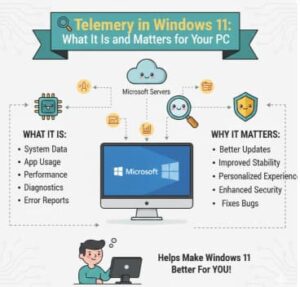
Telemetry exists in Windows but with the release of Windows 11 it became more central to how the windows works. While the term “telemetry” may sound technical or even sophisticated to end users however the actual purpose is more practical and user oriented than you may think. Microsoft uses telemetry to enhance performance, improve reliability, boost security, and deliver a smoother overall experience.
If you ever though why Windows 11 collects data or what telemetry really does behind the scenes then in this blog we will break it down and explain the reasons.
What Exactly Is Telemetry in Windows 11?
Telemetry in Windows 11 refers to the automated process of collecting diagnostic and usage data from your computer and sending it to Microsoft. The collected data helps understand how Windows performs in real scenarios , identify bugs, and quickly address issues impacting users.
In simple terms:
Telemetry helps Microsoft make Windows 11 run better, safer, and more efficiently—based on real data rather than guesswork.
Windows 11 organizes telemetry that is called “diagnostic data” to different levels depending on what is collected and how it is used. Although Windows 10 previously offered multiple data levels, Windows 11 keep it more simple for clarity and compliance with new privacy standards.
The Main Purpose of Telemetry in Windows 11
The core purpose of telemetry in Windows 11 is to monitor system performance, detect issues, and help improve the operating system. This includes optimizing features, fixing bugs, strengthening security, and tailoring the user experience.
Here are the key functions of telemetry:
1. Improving System Stability
Telemetry helps Microsoft detect crashes, software errors, driver failures, and compatibility issues. Because this information is collected automatically, so Microsoft development and support team can address problems faster and push fixes through Windows Update.
For example:
If a specific graphics driver causes crashes on thousands of machines then telemetry will flag this repeated pattern and Microsoft can work with the manufacturer to solve it.
2. Enhancing Windows Security
Windows 11 uses telemetry to detect suspicious activities like malware attacks, unusual system behavior, and security threats across millions of devices. This data helps improve Windows Defender updates and overall protection.
Mainly it is a network of devices working together to strengthen security for everyone.
3. Improving User Experience
Telemetry shows Microsoft how people actually use Windows what features they click, what settings they change, and where they get stuck. This helps to improve the interface and build new features that users are looking for.
Many Windows 11 usability improvements from redesigned Settings to optimized multi-monitor support came mainly from telemetry insights.
4. Optimizing Performance
Windows 11 uses telemetry to measure startup times, RAM usage, battery life, and application performance. With this information Microsoft can make updates that run faster on more devices.
Telemetry also helps identify which apps slow down PCs allowing Microsoft to make adjustments and recommendations.
5. Faster Bug Fixes and Reliability Updates
Without telemetry Microsoft would have to rely on voluntary reports that slows the process and misses most issues. Telemetry allows real time identification of problems across millions of devices which means quicker patches and fewer system failures.
Is Windows 11 Telemetry Safe?
This is one of the most common concerns and Microsoft has built several privacy protections around telemetry:
- Data is encrypted before transmission.
- Personal files (like photos, documents, emails) are NOT collected.
- Users have control over certain data types.
- Data is used to improve Windows, not for advertising.
Windows 11 aligns with strict global data protection laws like GDPR. While telemetry does collect device and usage information, it’s not designed to gather private or personally sensitive content.
What Kind of Data Does Windows 11 Collect?
Telemetry in Windows 11 typically includes:
- Device configuration (hardware specs, drivers)
- System performance (CPU, RAM, battery usage, temperature)
- App performance and crashes
- Security events
- Compatibility information
- Error logs
Windows does not collect:
- Personal files
- Photos
- Videos
- Text documents
- Browsing content
- Passwords
Telemetry is much more about how the system works—not what you personally do on the device.
Can You Control Telemetry in Windows 11?
Yes and no as Windows 11 allows some control but certain telemetry is required to keep the OS secure and functioning.
Here’s what users can adjust:
1. Diagnostic Data Options
In Windows 11 Basic Diagnostic Data usually remains required, while more detailed data can be disabled on some editions.
2. Privacy Settings
Users can disable optional features like the following:
- Tailored experiences
- Location tracking
- App diagnostics
- Input personalization
- Advertising ID
That will reduce the amount of information sent to Microsoft and third-party apps.
3. Enterprise Users Have More Control
Windows 11 Pro or Enterprise administrators can use Group Policy or Intune to limit telemetry even further, especially in corporate environments.
Why Telemetry Matters in Windows 11 Future
As Windows continues shifting towards more cloud experience like AI features, Copilot integration, and hardware optimization telemetry plays a bigger role as It helps Microsoft understand performance across thousands of device configurations, enabling updates that work smoothly on older and newer machines like.
Telemetry ensures Windows remains:
- More secure.
- More stable.
- Better optimized.
- Faster to update.
- More user-friendly.
It’s a major reason why Windows 11 has fewer widespread crash events than earlier versions.
How Open Windows Telemetry (Diagnostic Data) Settings
This is the main place where you can access and manage telemetry settings.
Steps:
- Open Settings
- Go to Privacy & security
- Click Diagnostics & feedback

Here you can:
- Turn on/off optional diagnostic data.
- Enable/disable tailored experiences.
- Delete diagnostic data.
- Enable the Diagnostic Data Viewer.
This is the primary “telemetry access” page for normal users..

Enable and Use the Diagnostic Data Viewer
If you want to see the data Windows sends to Microsoft, this is the tool to use.
How to enable it:
- Go to Settings → Privacy & security → Diagnostics & feedback
- Scroll down to Diagnostic Data Viewer
- Turn ON the switch
- Click Open Diagnostic Data Viewer (after it installs from the Microsoft Store)
What you can see:
✔ Logged telemetry events
✔ App usage
✔ System performance data
✔ Error logs
✔ Driver information
✔ Device configuration
✔ Security logs
This is the closest Windows gives you to raw telemetry inspection.
View Telemetry Events in Event Viewer
Windows also logs diagnostic events in the Event Viewer.

Steps:
- Press Win + X
- Click Event Viewer
- Navigate to:
Applications and Services Logs → Microsoft → Windows → Diagnostics-Performance
OR
Microsoft → Windows → Application-Experience
What you’ll find there:
- Performance logs
- Startup and shutdown analysis
- App compatibility telemetry
- System diagnostic feedback
These events are part of Windows’ telemetry and performance diagnostics.
Telemetry in Windows 11 might sound technical or even intrusive at first glance, but its primary purpose is clear: to ensure your computer runs better, faster, safer, and more efficiently. It gives Microsoft the real-world data needed to fix bugs, patch vulnerabilities, improve performance, and evolve the operating system with user needs in mind.
While users can adjust certain privacy settings, a core level of telemetry keeps Windows 11 reliable and secure for everyone. Whether you’re gaming, working, or browsing, telemetry works quietly behind the scenes to make your experience smoother each day.
Extra posts:
 The Copilot Impact Report Turning Usage Telemetry into Actionable Governance Insights
  Copilot Now Remembers You Here’s Why That Matters
  Why Software Architecture Matters More Than Ever
  Governance in Solution Architecture: Why It Matters and How to Get It Right
  How to Move the Start Menu to the Left in Windows 11 (Like Windows 10 Style)
  What Is the GitHub Copilot Certification and Why It Matters for Developers