
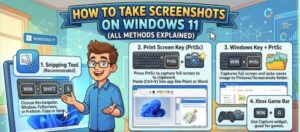
Screenshots are one of the most useful tools in any Windows user’s workflow—whether you’re troubleshooting an issue, saving important information, creating tutorials, or sharing something quickly. As a Windows expert, I can confidently say that Windows 11 offers more ways than ever to capture your screen, each suited to different needs.
In this comprehensive guide, we’ll explore all the methods available to take screenshots on Windows 11, from simple keyboard shortcuts to advanced tools.
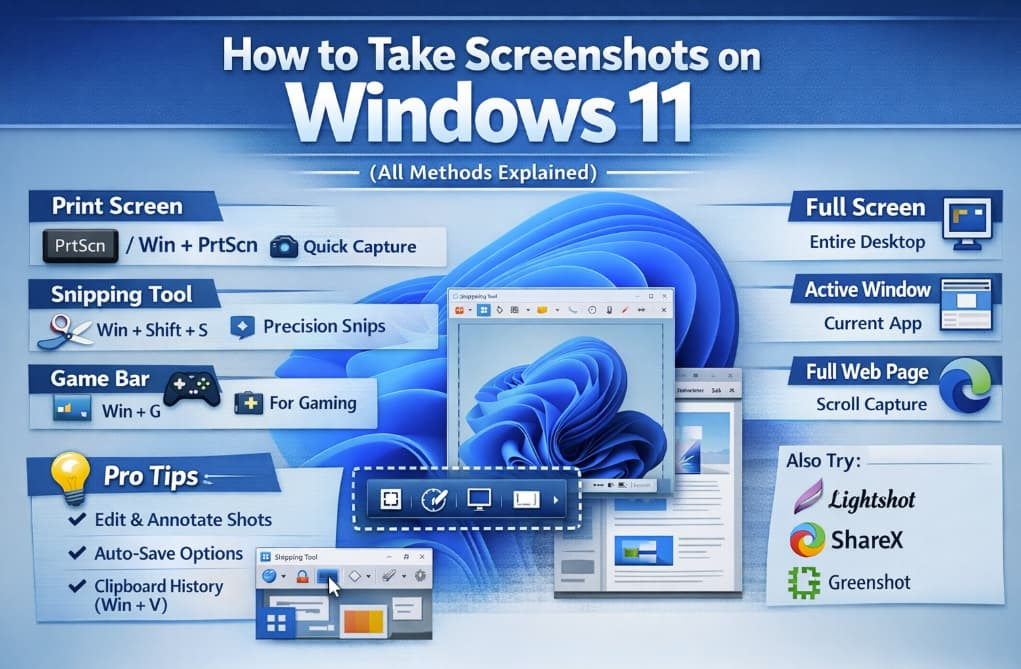
1. Using the Print Screen (PrtScn) Key
The Print Screen (PrtScn) key is the most basic and widely known method.
➤ Capture Entire Screen
Press:
PrtScn
- Captures the full screen
- Copies it to the clipboard
- Paste it into apps like Paint, Word, or email using
Ctrl + V
➤ Save Screenshot Automatically
Press:
Windows + PrtScn
- Captures entire screen
- Automatically saves it to: Pictures > Screenshots
➤ Capture Active Window Only
Press:
Alt + PrtScn
- Captures only the currently active window
- Copies to clipboard
2. Using Snipping Tool (Built-in App)
Windows 11 combines the classic Snipping Tool and Snip & Sketch into one powerful utility.
➤ Open Snipping Tool
Press:
Windows + Shift + S
This opens a small toolbar at the top with different options:
➤ Snipping Modes
- Rectangular Snip – Drag to capture a selected area
- Freeform Snip – Draw any shape
- Window Snip – Capture a specific window
- Fullscreen Snip – Capture entire screen
➤ Key Features
- Instant preview notification
- Built-in editing tools (crop, highlight, annotate)
- Save or copy easily
💡 Pro Tip: Screenshots go to clipboard first—you must save them manually unless you open the tool app.
3. Using Snipping Tool App Directly
Instead of the shortcut, you can:
- Search for Snipping Tool in Start Menu
- Click New
- Choose delay (3, 5, or 10 seconds)
➤ Why use this method?
- Perfect for capturing menus or timed actions
- Better control before taking screenshot
4. Using Xbox Game Bar
Great for gamers and recording screen activity.
➤ Open Game Bar
Windows + G
➤ Take Screenshot
- Click the Capture widget
- Or press:
Windows + Alt + PrtScn
➤ Where it saves:
Videos > Captures
➤ Best for:
- Gaming screenshots
- Recording clips
- Performance monitoring
5. Using Windows + Volume Down (For Tablets)
If you’re using a touchscreen device like a Surface:
Windows Button + Volume Down
- Captures full screen
- Saves automatically in Screenshots folder
6. Using Third-Party Tools (Advanced Users)
If you need more advanced features, consider third-party tools.
➤ Benefits:
- Advanced editing tools
- Instant sharing links
- Scrolling screenshots
- Custom shortcuts
7. Using Microsoft Edge (Web Capture)
For capturing web pages:
➤ Steps:
- Open Microsoft Edge
- Press:
Ctrl + Shift + S
➤ Options:
- Capture selected area
- Capture full page (scrolling screenshot)
➤ Best for:
- Articles
- Full webpage screenshots
8. Clipboard History Trick
If you take multiple screenshots:
Press:
Windows + V
- View clipboard history
- Access previously copied screenshots
💡 Make sure clipboard history is enabled in settings.
9. Auto-Save vs Clipboard: Know the Difference
| Method | Saved Automatically | Clipboard |
|---|---|---|
| PrtScn | ❌ | ✅ |
| Windows + PrtScn | ✅ | ❌ |
| Snipping Tool | ❌ | ✅ |
| Game Bar | ✅ | ❌ |
Understanding this helps avoid losing screenshots.
10. Tips to Improve Your Screenshot Workflow
- Use Windows + Shift + S for quick precision
- Use Windows + PrtScn for bulk saving
- Rename files immediately for organization
- Use editing tools to highlight key info
- Combine with OneDrive for auto backup
Windows 11 gives you a powerful set of screenshot tools right out of the box. Whether you’re a casual user or a power user, there’s a method tailored for your needs:
- Quick capture → PrtScn
- Precision → Snipping Tool
- Gaming → Game Bar
- Web → Edge Web Capture
Mastering these methods can significantly boost your productivity and make your daily tasks much easier.
Extra posts:
 Windows 11 System Requirements Explained Simply
  How to Move the Start Menu to the Left in Windows 11 (Like Windows 10 Style)
  Windows 10 Extended Security Updates: A Bridge to Your Windows 11 Experience
  Setting Up Windows Hello for Faster Logins in Windows 11
  Windows 11: What’s New Compared to Windows 10
  Blockchain Technology Explained