
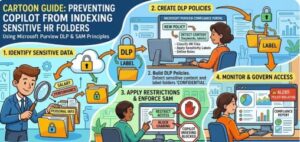
As organizations rapidly adopt AI-powered tools like Microsoft Copilot, the promise of productivity gains comes with a new class of data governance challenges. One of the most pressing concerns for IT and security teams is ensuring that sensitive information especially HR data stored in SharePoint is not inadvertently exposed or indexed by AI systems.
HR folders often contain highly confidential data such as employee records, compensation details, performance reviews, and personally identifiable information (PII). If this data is indexed or surfaced by Copilot, even unintentionally, it could lead to compliance violations and reputational risk. Fortunately, Microsoft provides robust tools like Purview Data Loss Prevention (DLP) and SharePoint Advanced Management (SAM) to help you control access and prevent unwanted exposure.
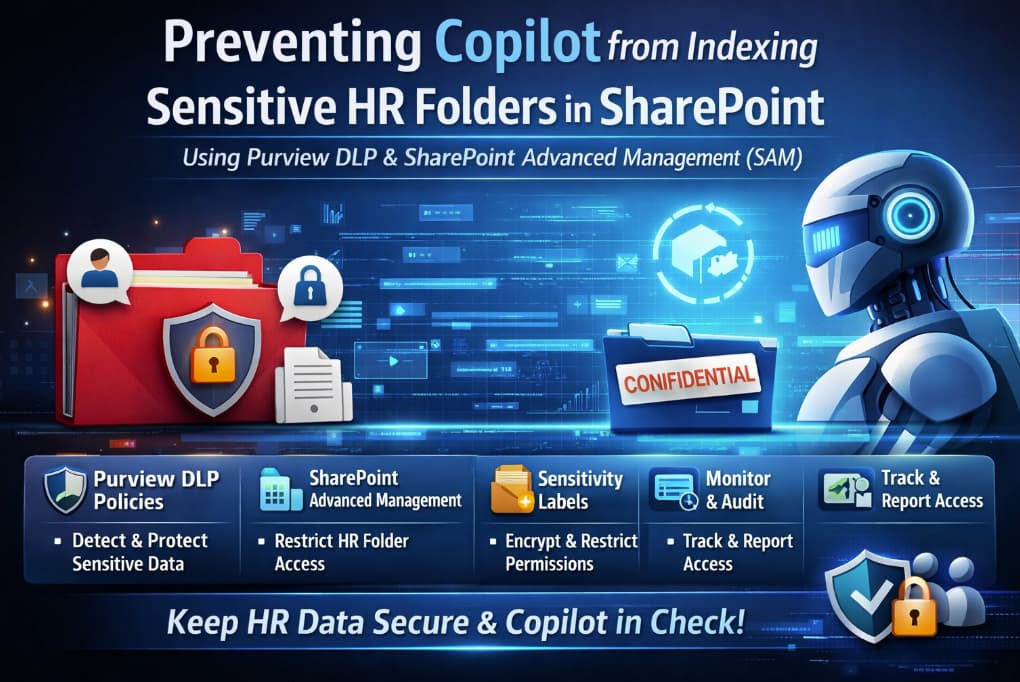
In this guide, we’ll walk through how to strategically use these tools to prevent Copilot from indexing sensitive HR folders in SharePoint.
Understanding the Risk: Why Copilot Indexing Matters
Microsoft Copilot works by leveraging Microsoft Graph to access and surface relevant organizational data. It respects user permissions, but that doesn’t mean all sensitive data is safe by default.
If HR folders are broadly accessible even read-only Copilot may include that data in its responses. For example, a manager asking Copilot for “team performance summaries” could inadvertently receive insights drawn from confidential HR documents.
This is where proactive data governance becomes critical.
Step 1: Identify and Classify Sensitive HR Data
Before applying any controls, you need to know what data you’re protecting.
Start by:
- Scanning SharePoint HR sites using Microsoft Purview
- Applying sensitivity labels such as “Confidential-HR”
- Using built-in classifiers for PII, financial data, and employment records
This classification is the foundation for both DLP and access control policies.
Step 2: Apply Purview DLP Policies to HR Content
Microsoft Purview DLP allows you to create policies that detect and protect sensitive information across Microsoft 365 services, including SharePoint.
Key Actions:
- Create a DLP policy targeting SharePoint locations
- Define conditions such as:
- Presence of sensitive info types (e.g., Social Security numbers, bank accounts)
- Specific sensitivity labels (e.g., “HR Confidential”)
- Configure actions:
- Restrict access to content
- Block sharing with external users
- Display policy tips to users
Why This Matters for Copilot:
While DLP doesn’t directly block Copilot, it ensures that sensitive files are tightly controlled and not broadly accessible—reducing the likelihood that Copilot can retrieve them.
Step 3: Use SharePoint Advanced Management (SAM) for Access Control
SharePoint Advanced Management provides deeper control over site-level and file-level permissions, which is crucial for limiting Copilot’s reach.
Recommended Practices:
- Limit Site Access: Ensure HR sites are only accessible to HR personnel
- Break Permission Inheritance: Apply unique permissions to sensitive folders
- Use Restricted Access Control (RAC):
- Configure policies that limit access based on group membership
- Prevent even indirect access via shared links or group memberships
Example:
Create a RAC policy that only allows members of the “HR Team” Azure AD group to access specific folders. This ensures that even if someone has general access to the SharePoint site, they cannot access HR content.
Step 4: Combine Sensitivity Labels with Access Policies
Sensitivity labels in Microsoft Purview can enforce encryption and access restrictions.
How to Use Them:
- Apply labels like “Highly Confidential – HR” to documents and folders
- Configure label settings to:
- Encrypt content
- Restrict access to specific users or groups
- Prevent copying or downloading
When combined with SAM, this creates a layered defense:
- SAM controls who can access
- Sensitivity labels control what they can do with the data
Step 5: Monitor and Audit Access
Prevention is only part of the equation. You also need visibility.
Use:
- Microsoft Purview Audit logs
- SharePoint access reports
- DLP incident reports
Look for:
- Unauthorized access attempts
- Policy violations
- Unusual activity patterns
This helps you continuously refine your policies and respond to potential risks.
Step 6: Educate Users and HR Teams
Technology alone isn’t enough. Human behavior plays a big role in data exposure.
Train HR staff and managers on:
- Proper data handling practices
- Avoiding oversharing in SharePoint
- Understanding sensitivity labels and DLP alerts
Encourage a culture of data responsibility.
Common Pitfalls to Avoid
- Over-permissioned Sites: Even read access can expose data to Copilot
- Unlabeled Content: Without labels, DLP and encryption policies won’t trigger
- Ignoring Nested Access: Users may gain access via group memberships
- No Monitoring: Without auditing, you won’t know if controls are working
As AI becomes embedded in everyday workflows, the line between accessibility and exposure becomes thinner. Tools like Microsoft Copilot are powerful, but they rely on the data you make available.
By combining Microsoft Purview DLP with SharePoint Advanced Management, you can create a robust framework that protects sensitive HR data from being indexed or surfaced by Copilot. It’s not about limiting productivity it’s about enabling it safely.
Start with classification, enforce strict access controls, apply sensitivity labels, and continuously monitor your environment. With the right strategy, you can embrace AI without compromising your most sensitive information.
Extra posts:
 How to Use Microsoft Purview Data Loss Prevention (DLP) to Protect Sensitive Data
  Governance for Generative AI: Enforcing Data Loss Prevention (DLP) with Microsoft 365 Copilot
  Copilot’s Invisible Shield Leveraging Purview & Graph to Control Generative AI Risk
  The “Agentic” Intranet: Securing and Scaling M365 Copilot with SharePoint & Teams
  Copilot + SharePoint Search: How AI Changes Information Discovery
  Pre-Flight Check The 5 Non-Negotiable SharePoint Cleanups Before Deploying Copilot