
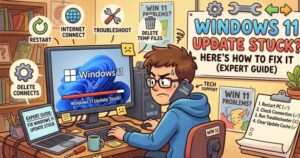
If you’ve ever sat staring at a frozen “Updating Windows” screen, you know how frustrating it can be. As someone who has worked with Windows systems for years—from enterprise deployments to home troubleshooting—I can tell you this is one of the most common issues users face with Windows 11. The good news? In most cases, it’s fixable without drastic measures.
Let’s walk through why Windows updates get stuck and, more importantly, how to fix it step by step.
Why Windows 11 Updates Get Stuck
Before jumping into solutions, it helps to understand what’s happening behind the scenes.
Windows updates are complex. They involve downloading files, verifying them, unpacking, installing drivers, and sometimes modifying system-level components. A failure at any stage can cause the process to freeze.
Here are the most common causes:
- Corrupted update files
- Insufficient disk space
- Conflicts with drivers or software
- Interrupted downloads
- Windows Update service glitches
- Slow or unstable internet connection
Sometimes, it’s not even “stuck”—it just appears frozen while working in the background. But if it’s been hours with no progress, it’s time to act.
First: Be Patient (But Not Too Patient)
If your update is stuck at something like 0%, 20%, or 99%, give it at least 30–60 minutes. Major updates can take time, especially on older systems.
However, if:
- The percentage hasn’t changed for hours
- Your system is unresponsive
- No disk activity is happening
Then you’re likely dealing with a genuine issue.
Fix #1: Restart Your PC (The Right Way)
This may sound basic, but it works surprisingly often.
- Press and hold the power button until your PC shuts down
- Wait 10–15 seconds
- Turn it back on
Windows is designed to recover from interrupted updates. After rebooting, it may:
- Resume the update
- Roll back changes
- Boot normally
If you’re lucky, the problem ends here.
Fix #2: Run Windows Update Troubleshooter
Windows 11 includes a built-in troubleshooter that can automatically detect and fix update problems.
Steps:
- Go to Settings
- Click System > Troubleshoot > Other troubleshooters
- Find Windows Update
- Click Run
This tool can:
- Reset update services
- Fix corrupted components
- Restart necessary processes
It’s often the easiest and safest fix.
Fix #3: Clear the Windows Update Cache
Corrupted update files are a major cause of stuck updates. Clearing the cache forces Windows to download fresh files.
Steps:
- Press
Windows + R - Type
services.mscand hit Enter - Stop these services:
- Windows Update
- Background Intelligent Transfer Service (BITS)
- Navigate to: C:\Windows\SoftwareDistribution
- Delete all files inside this folder
- Restart the services
Now try updating again.
Fix #4: Check Your Disk Space
Windows 11 updates need room to breathe.
- Minimum recommended free space: 20–30 GB
- Open Settings > System > Storage
If you’re running low:
- Delete temporary files
- Use Storage Sense
- Uninstall unused apps
Lack of space can silently stall updates.
Fix #5: Disconnect External Devices
This is a lesser-known trick but surprisingly effective.
Unplug:
- USB drives
- External hard disks
- Printers
- Docking stations
Sometimes, drivers for external devices interfere with updates.
Fix #6: Update Drivers Manually
Outdated or incompatible drivers can cause updates to hang.
Focus on:
- Graphics drivers
- Network adapters
- Chipset drivers
Visit your manufacturer’s website (Dell, HP, Lenovo, etc.) and download the latest drivers manually.
Fix #7: Use Safe Mode to Fix the Issue
Booting into Safe Mode can help resolve deeper conflicts.
Steps:
- Hold Shift + Restart
- Go to Troubleshoot > Advanced options > Startup Settings
- Select Safe Mode
Once inside:
- Run the Windows Update troubleshooter again
- Delete update cache files
Fix #8: Run System File Checker (SFC)
Corrupted system files can block updates.
Steps:
- Open Command Prompt (Admin)
- Run: sfc /scannow
This will scan and repair system files automatically.
You can also run:
DISM /Online /Cleanup-Image /RestoreHealth
This command repairs the Windows image itself.
Fix #9: Manually Install the Update
If the automatic update fails repeatedly, you can install it manually.
Steps:
- Visit the Microsoft Update Catalog
- Search for the update (e.g., KB number)
- Download and install it manually
This bypasses the built-in update mechanism entirely.
Fix #10: Reset Windows Update Components
This is more advanced but highly effective.
You’ll:
- Stop update services
- Rename system folders
- Restart services
If you’re comfortable with command-line tools, this method can resolve persistent issues.
When Nothing Works: Reset Windows 11
As a last resort, you can reset your system:
- Go to Settings > System > Recovery
- Choose Reset this PC
- Select Keep my files
This reinstalls Windows while preserving your data.
Pro Tips from a Windows Expert
After years of troubleshooting, here are a few insights most guides won’t tell you:
- Avoid interrupting updates unless absolutely necessary
- Keep your system updated regularly to avoid large problematic updates
- Use an SSD if possible—updates are significantly faster and more stable
- Disable third-party antivirus temporarily during updates
A stuck Windows 11 update can feel like a nightmare, but in reality, it’s usually a solvable problem. Whether it’s clearing the update cache, fixing system files, or simply restarting your PC, one of these methods will almost always do the trick.
If you deal with this often, it might be worth looking deeper into system health or hardware limitations.
Extra posts:
 How to Speed Up Windows 11 Without Third-Party Tools (Complete Expert Guide)
  Windows 11 Slow? 15 Fixes to Boost Performance (Expert Guide)
  Can I Rollback a Windows 11 Update? A Complete Guide to Reverting Windows Updates Safely
  How to Fix Windows 11 Not Responding
  How to Fix Windows 11 Problems Without Calling IT
  Why Is My Windows 11 Sandbox Not Working? 10 Ways to Fix It