
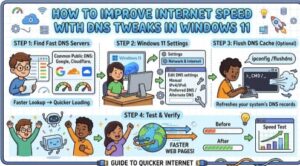
A slow internet connection can be frustrating, especially when you are streaming videos, playing online games, attending meetings, downloading files, or simply browsing the web. Many people immediately blame their internet provider or router, but sometimes the problem is not your connection speed — it is the way your computer communicates with websites.
One simple way to improve your browsing experience on Windows 11 is by changing your DNS settings. DNS tweaks can help your device find websites faster, reduce delays, improve reliability, and sometimes make your internet feel noticeably quicker.
In this guide, we will explore what DNS is, how it affects internet speed, and how you can optimize DNS settings in Windows 11.
What Is DNS and Why Does It Matter?
DNS stands for Domain Name System. It works like the internet’s address book. When you type a website address into your browser, such as example.com, your computer needs to translate that name into an IP address that servers understand.
Without DNS, you would have to remember long strings of numbers instead of simple website names.
Every internet connection uses a DNS server. Usually, your internet service provider automatically assigns one. However, the default DNS server may not always be the fastest or most reliable option.
A slow DNS server can cause delays before a website even starts loading. While DNS changes will not increase your actual download speed from your internet plan, they can reduce the time it takes to connect to websites.
Benefits of Changing DNS Settings in Windows 11
Updating your DNS settings can provide several advantages:
Faster Website Loading
A faster DNS resolver can respond more quickly when your browser requests a website address. This can reduce the waiting time before pages begin loading.
Better Reliability
Some DNS servers experience outages or slowdowns. Switching to a trusted DNS provider can improve connection stability.
Improved Security
Some DNS services include features that block malicious websites, phishing pages, and dangerous domains.
Reduced Connection Delays
Gamers and remote workers may notice improvements because DNS response time affects how quickly services connect.
Best DNS Servers to Try on Windows 11
There are many public DNS providers available. Some popular choices include:
Cloudflare DNS
- Primary: 1.1.1.1
- Secondary: 1.0.0.1
Known for speed and privacy-focused features.
Google Public DNS
- Primary: 8.8.8.8
- Secondary: 8.8.4.4
A widely used DNS service with strong reliability.
Quad9 DNS
- Primary: 9.9.9.9
- Secondary: 149.112.112.112
Focuses on security by blocking known malicious domains.
The best DNS server depends on your location and network. Testing different options can help you find the fastest one.
How to Change DNS Settings in Windows 11
Changing DNS settings in Windows 11 is simple and does not require advanced technical knowledge.
Step 1: Open Network Settings
- Click the Start menu.
- Open Settings.
- Select Network & Internet.
- Choose your connection type:
- Wi-Fi
- Ethernet
Step 2: Open DNS Settings
- Click your connected network.
- Find DNS server assignment.
- Click Edit.
Step 3: Switch DNS Manually
- Change the setting from Automatic to Manual.
- Enable IPv4.
- Enter your preferred DNS addresses.
For example:
Preferred DNS:
1.1.1.1Alternate DNS:
1.0.0.1- Click Save.
Your Windows 11 computer will now use the new DNS server.
Flush DNS Cache After Changing Settings
Windows stores previous DNS information to speed up future connections. After changing DNS servers, clearing the cache can help apply the changes immediately.
To flush DNS:
- Press Windows + S.
- Search for Command Prompt.
- Open it as administrator.
- Type:
ipconfig /flushdns- Press Enter.
You should see a message confirming that the DNS resolver cache was successfully cleared.
Enable DNS Over HTTPS (DoH) in Windows 11
Windows 11 supports DNS over HTTPS, which encrypts DNS requests. This improves privacy and prevents others from easily viewing the websites your device is trying to access.
To enable it:
- Go to Settings.
- Open Network & Internet.
- Select your Wi-Fi or Ethernet connection.
- Edit DNS settings.
- Choose an encrypted DNS option if available.
DNS over HTTPS can provide both security and privacy benefits while keeping DNS requests protected.
Use Command Prompt to Check DNS Performance
You can check your current DNS configuration using Command Prompt.
Open Command Prompt and type:
ipconfig /allLook for the DNS Servers section to see which servers your system is using.
You can also test response times using:
nslookup website.comThis shows how quickly your DNS server responds.
Other Windows 11 Tweaks That Help Internet Performance
DNS changes are useful, but they work best when combined with other improvements.
Update Network Drivers
Old Wi-Fi or Ethernet drivers can cause performance issues. Check Windows Update or your device manufacturer’s website for newer drivers.
Restart Your Router
Routers can slow down after running for long periods. A simple restart can refresh the connection.
Close Background Apps
Apps running in the background may consume bandwidth. Check Task Manager to identify programs using your network.
Use a Better Wi-Fi Channel
If many nearby networks use the same Wi-Fi channel, interference can reduce performance. Adjusting router settings may help.
Does Changing DNS Increase Internet Speed?
DNS tweaks usually do not increase your maximum internet speed. For example, a 100 Mbps connection will not become a 500 Mbps connection just by changing DNS.
However, DNS can improve the speed of:
- Website lookups
- Initial connection times
- Browser responsiveness
- Online service access
The difference is often small, but noticeable, especially when your default DNS server is slow.

Changing DNS settings is one of the easiest ways to optimize internet performance on Windows 11. It takes only a few minutes, requires no expensive tools, and can improve browsing speed, reliability, and security.
If your internet feels slow, try switching to a faster DNS provider, clearing your DNS cache, and enabling DNS over HTTPS. Combined with good network habits, these tweaks can help you get a smoother online experience.
Extra posts:
 How to Speed Up Boot Time in Windows 11
  Registry Tweaks to Unlock Hidden Features in Windows 11
  How to Speed Up Windows 11 Without Third-Party Tools (Complete Expert Guide)
  How to Reconfigure the Hidden Context Menu and Unlock Power Tweaks in Windows
  Running Windows with Slow or Unstable Internet Tips for Users in Low-Bandwidth Regions
  Office 365 DNS Diagnostic