

Practical guidance on structured data management for project tracking and assets
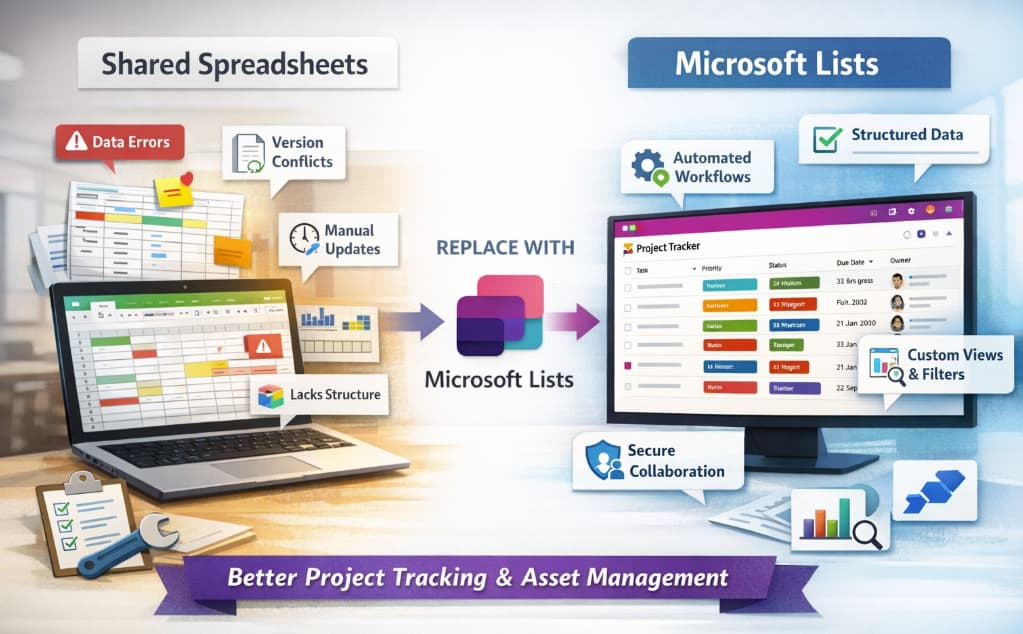
Shared spreadsheets have long been the default tool for tracking projects, managing assets, and collaborating across teams. While they’re flexible and familiar, they often become messy, error-prone, and difficult to scale as collaboration increases. Version conflicts, inconsistent data entry, and lack of structure can turn even the most organized spreadsheet into a source of confusion.
This is where Microsoft Lists comes in. Designed as a modern solution for structured data management, Microsoft Lists offers a smarter, more controlled way to manage information without sacrificing flexibility. In this guide, we’ll walk through how to transition from shared spreadsheets to Microsoft Lists and use it effectively for project tracking and asset management.
Why Replace Shared Spreadsheets?
Before diving into how to use Microsoft Lists, it’s important to understand why spreadsheets often fall short:
- Data inconsistency: Free-form cells allow users to input anything, leading to errors.
- Collaboration issues: Multiple users editing at once can cause conflicts or overwritten data.
- Lack of structure: No enforced schema means fields aren’t standardized.
- Limited automation: Manual updates increase workload and risk of mistakes.
- Poor scalability: Large datasets become slow and difficult to navigate.
Microsoft Lists addresses these issues by introducing structure, rules, and automation into your workflows.
What Is Microsoft Lists?
Microsoft Lists is a data tracking app within Microsoft 365 that allows you to create, manage, and share structured lists of information. Think of it as a smarter, more controlled evolution of spreadsheets combining database-like functionality with an intuitive interface.
With Microsoft Lists, you can:
- Define columns with specific data types
- Enforce validation rules
- Use views to filter and organize data
- Automate workflows
- Collaborate in real time without chaos
Step 1: Identify Your Spreadsheet Use Case
Start by analyzing your current spreadsheet. Ask yourself:
- What type of data are you tracking?
- What columns do you use?
- Are there recurring errors or inconsistencies?
- Who accesses and edits the file?
Common use cases include:
- Project tracking
- Issue/bug tracking
- Asset management
- Inventory lists
- Task assignments
Understanding your use case will help you design a structured list that meets your needs.
Step 2: Create a List from Scratch or Template
Microsoft Lists offers several templates such as:
- Issue tracker
- Project tracker
- Asset manager
- Employee onboarding
You can either:
- Use a template for a quick start
- Import an existing Excel file
- Build a custom list from scratch
When replacing a spreadsheet, importing your existing file is often the easiest starting point. Microsoft Lists will attempt to detect column types automatically.
Step 3: Define Structured Columns
This is where Microsoft Lists shines compared to spreadsheets.
Instead of generic cells, you define column types, such as:
- Text
- Number
- Choice (dropdown)
- Date and time
- Person (assigned user)
- Yes/No
- Lookup (reference another list)
Example: Project Tracking List
Instead of a spreadsheet with inconsistent entries, structure your list like this:
- Project Name (Text)
- Status (Choice: Not Started, In Progress, Completed)
- Owner (Person)
- Start Date (Date)
- Due Date (Date)
- Priority (Choice: Low, Medium, High)
This ensures everyone enters data consistently.
Step 4: Use Views to Replace Spreadsheet Filters
In spreadsheets, users rely heavily on filters and sorting. Microsoft Lists improves this with custom views.
You can create views such as:
- Active Projects (filter: Status = In Progress)
- High Priority Tasks
- Tasks Assigned to Me
Views can be saved and shared, ensuring everyone sees the same organized data without manually applying filters.
Step 5: Apply Rules and Validation
One of the biggest weaknesses of spreadsheets is the lack of enforced rules.
Microsoft Lists allows you to:
- Make fields required
- Set conditional formatting
- Create validation rules
Example:
- Prevent setting a Due Date earlier than the Start Date
- Highlight overdue tasks in red
- Require “Owner” before saving an item
This dramatically improves data quality.
Step 6: Enable Automation with Power Automate
Manual updates in spreadsheets can be time-consuming. Microsoft Lists integrates seamlessly with automation tools.
You can automate:
- Notifications when a task is assigned
- Alerts when deadlines are approaching
- Status updates based on changes
Example Workflow:
- When Status changes to “Completed” → notify manager
- When Due Date is tomorrow → send reminder email
This reduces manual follow-ups and keeps everyone aligned.
Step 7: Manage Permissions and Collaboration
Unlike spreadsheets that are often over-shared, Microsoft Lists allows fine-grained permissions.
You can:
- Control who can view or edit items
- Assign item-level permissions
- Track changes with version history
This is especially useful for sensitive data like asset inventories or internal project tracking.
Step 8: Use Forms for Easy Data Entry
Instead of asking users to edit rows in a spreadsheet, Microsoft Lists provides clean forms for data entry.
Benefits:
- Guided input reduces errors
- Required fields ensure completeness
- Better user experience for non-technical users
This is particularly helpful when collecting data from multiple team members.
Step 9: Visualize Data with Integrations
Microsoft Lists integrates with tools like dashboards and reporting platforms.
You can:
- Connect to Power BI for analytics
- Embed lists in SharePoint pages
- Sync with Teams for collaboration
This turns your list into a dynamic data source rather than a static file.
Step 10: Gradually Transition Your Team
Switching from spreadsheets to Microsoft Lists doesn’t have to be abrupt.
Best practices:
- Start with one use case (e.g., project tracking)
- Train your team on how to use lists
- Keep the spreadsheet as backup during transition
- Gather feedback and refine your list structure
Adoption improves when users see clear benefits like reduced errors and easier workflows.
Real-World Example: Asset Management
Spreadsheet Problem:
- Duplicate entries
- Missing asset owners
- No tracking of asset status
Microsoft Lists Solution:
- Structured fields (Asset ID, Owner, Status, Location)
- Dropdowns for consistent entries
- Automated alerts for maintenance
- Filtered views for active/inactive assets
Result: Cleaner data, better accountability, and faster reporting.
Key Benefits of Microsoft Lists
Replacing shared spreadsheets with Microsoft Lists offers:
- Consistency: Structured data entry eliminates errors
- Efficiency: Automation reduces manual work
- Clarity: Views and filters improve visibility
- Scalability: Handles growing datasets easily
- Collaboration: Real-time updates without conflicts
Shared spreadsheets are great for quick tasks, but they often break down under the pressure of real collaboration and growing data complexity. Microsoft Lists provides a powerful alternative that combines the simplicity of spreadsheets with the structure of a database.
By defining clear columns, enforcing rules, using views, and adding automation, you can transform chaotic spreadsheets into reliable, scalable systems for project tracking and asset management.
Start small, iterate often, and you’ll quickly see the difference in how your team manages and trusts its data.
Extra posts:
 Setting Up Conditional Formatting in Microsoft Lists
  Deep Dive into Microsoft Lists Advanced Formatting and Automation
  Get notification when files shared in SharePoint Microsoft 365
  Microsoft Designer vs. Canva Can AI Really Replace Creativity?
  Shared Responsibility Model in Cloud Computing Simplified
  How to know files you shared in OneDrive