Traveling is exciting—new places, new cultures, and new adventures. But if you’re someone who works remotely, studies while traveling, or just needs to stay connected with your team, staying productive on the road can be tricky. That’s where Microsoft Teams becomes a true travel companion.
Here’s how I’ve been using Teams to balance work and adventure while hopping across cities and time zones—and how you can do it too:
1. Carry Your Office in Your Pocket
The Teams mobile app is a lifesaver. Whether I’m waiting at the airport, sitting in a café in Barcelona, or riding a train through the Alps, I can quickly check messages, join meetings, and share updates right from my phone.
How to do it:
- Download the Microsoft Teams app from the App Store or Google Play.
- Sign in with your work, school, or personal Microsoft account.
- Tap the Chat tab to keep up with team conversations.
- Tap Files to access shared documents anywhere.
Pro tip: Download files you’ll need offline in Teams before heading to places with shaky Wi-Fi.
2. Schedule Smarter Across Time Zones
Time zones can get messy when you’re working from different continents. Teams automatically adjusts meeting times based on your location.
How to do it:
- Open the Calendar tab in Teams.
- Click New Meeting.
- Add participants and let Teams sync times automatically.
- If unsure, switch your device’s time zone to confirm the correct schedule.
Pro tip: Use the Outlook integration to check everyone’s availability at a glance.
3. Video Calls Without Borders
There’s something comforting about seeing familiar faces even when you’re thousands of miles away.
How to do it:
- Go to Chat or Teams, and select the person or group.
- Tap the Camera icon to start a video call.
- Before joining, click Background filters → choose Blur or a custom background to hide your surroundings.
- If internet is weak, go to Settings → Data and storage → Low data usage.
4. Keep Everything in One Place
Travel can make you scatterbrained—passport here, ticket there, project file… somewhere in your inbox. Teams organizes everything into channels so you don’t lose track.
How to do it:
- Open your team in Teams.
- Create Channels for different projects or topics.
- Upload files directly in the Files tab of a channel.
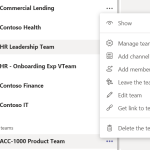
- Use the Pin feature (right-click on a channel → Pin) for quick access.
5. Collaborate in Real Time, Wherever You Are
From reviewing documents to brainstorming ideas, Teams makes teamwork feel seamless—even on the go.
How to do it:
- Upload a Word, Excel, or PowerPoint file in a channel’s Files tab.
- Click Open in Teams to edit it together in real time.
- Use Whiteboard during meetings to sketch ideas.
- For multilingual teams: go to More options (…) → Translate in chat messages.
6. Protect Work-Life Balance While Traveling
It’s easy to let work creep into your adventures when your office lives on your phone.
How to do it:
- Tap your profile picture in Teams.
- Select Set status message → e.g., “Exploring until 6 PM, back online after.”
- Choose Do Not Disturb when you want uninterrupted time.
- Use Quiet Hours (mobile app: Settings → Notifications → Quiet hours) so you don’t get pings while sightseeing.
Traveling doesn’t mean leaving work behind—it means finding smarter ways to stay connected without losing the magic of the journey. With Microsoft Teams, I’ve found a balance between exploring the world and staying productive.
Whether you’re a digital nomad, a business traveler, or someone trying to sneak in a little work between sightseeing, Teams can help you work from anywhere—without missing a beat.