
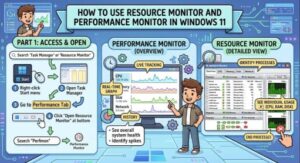
A slow computer can be frustrating, especially when you are working, gaming, studying, or running important applications. Many Windows 11 users notice problems like high CPU usage, low memory, slow startup times, or applications freezing but do not know where to find the cause.
Fortunately, Windows 11 includes powerful built-in tools that help you understand what is happening inside your system. Two of the most useful tools are Resource Monitor and Performance Monitor. These tools allow you to view detailed information about your computer’s CPU, memory, storage, and network activity without installing third-party software.
In this guide, we will explain what Resource Monitor and Performance Monitor are, how to open them, and how you can use them to improve your Windows 11 experience.
What Is Resource Monitor in Windows 11?
Resource Monitor is a built-in Windows tool that provides a detailed view of how system resources are being used in real time. While Task Manager gives you a quick overview, Resource Monitor provides deeper information about running processes and hardware activity.
With Resource Monitor, you can check:
- CPU usage by individual programs
- RAM and memory activity
- Hard drive and SSD usage
- Network connections
- Running processes and services
It is especially useful when your computer suddenly becomes slow and you want to find the exact program causing the problem.
How to Open Resource Monitor in Windows 11
There are several ways to launch Resource Monitor.
Method 1: Using Windows Search
- Click the Start button.
- Type Resource Monitor.
- Select the Resource Monitor application.
Method 2: Using the Run Command
- Press Windows + R on your keyboard.
- Type:
resmon
- Press Enter.
Resource Monitor will open immediately.
Method 3: Through Task Manager
- Press Ctrl + Shift + Esc to open Task Manager.
- Click the Performance tab.
- Select Open Resource Monitor at the bottom.
Understanding Resource Monitor Tabs
When Resource Monitor opens, you will see several tabs that provide different types of information.
CPU Tab
The CPU tab shows how your processor is being used. You can see:
- Active processes
- CPU percentage usage
- Services running in the background
- CPU time used by applications
If your computer feels slow, check whether a program is using an unusually high amount of CPU power.
For example, a browser with many open tabs, a background update, or a poorly optimized application may consume too many processor resources.
Memory Tab
The Memory tab helps you understand RAM usage.
You can monitor:
- Used memory
- Available memory
- Memory faults
- Applications consuming RAM
If your available memory is consistently low, Windows may start using virtual memory, which can make your system slower.
Disk Tab
The Disk tab shows which programs are reading or writing data.
This is helpful when:
- Your computer takes a long time to open files
- Applications freeze
- The hard drive stays active
You can identify programs that are constantly accessing your storage.
Network Tab
The Network tab displays internet and local network activity.
You can check:
- Programs using the internet
- Data transfer rates
- Active connections
This can help find applications using bandwidth in the background.
What Is Performance Monitor in Windows 11?
Performance Monitor is another advanced Windows tool designed for tracking system performance over time.
Unlike Resource Monitor, which focuses on real-time activity, Performance Monitor allows you to collect and analyze performance data.
It is useful for:
- Long-term monitoring
- Finding repeated performance problems
- Creating reports
- Tracking system health
IT professionals often use Performance Monitor because it provides detailed information about Windows systems.
How to Open Performance Monitor in Windows 11
Method 1: Using Windows Search
- Open the Start menu.
- Search for Performance Monitor.
- Open the application.
Method 2: Using Run Command
- Press Windows + R.
- Type:
perfmon
- Press Enter.
Performance Monitor will launch.
How to Use Performance Monitor
When you open Performance Monitor, you will see a graph displaying performance data.
By default, it monitors basic counters, but you can add many more.
Adding Performance Counters
To add a counter:
- Click the green plus (+) button.
- Select a performance category.
- Choose a counter.
- Click Add.
- Press OK.
Some useful counters include:
- Processor usage
- Available memory
- Disk activity
- Network traffic
- Application performance
These counters help you understand how your computer behaves over time.
Creating Data Collector Sets
One of the strongest features of Performance Monitor is Data Collector Sets.
They allow you to record system information automatically.
To create one:
- Open Performance Monitor.
- Expand Data Collector Sets.
- Right-click User Defined.
- Select New.
- Choose Data Collector Set.
You can schedule monitoring and review the collected reports later.
This is useful when troubleshooting problems that happen randomly because you can analyze what happened when the issue occurred.
Resource Monitor vs Performance Monitor
Although both tools monitor Windows performance, they serve different purposes.
Resource Monitor is best for:
- Checking current problems
- Finding programs using too many resources
- Real-time troubleshooting
Performance Monitor is best for:
- Recording performance history
- Advanced system analysis
- Creating detailed reports
Using both tools together gives you a complete picture of your computer’s health.
Tips for Better Windows 11 Performance Monitoring
Here are some practical tips:
Check After Installing New Software
If your computer slows down after installing a new program, use Resource Monitor to see whether it is consuming too many resources.
Monitor Startup Issues
Performance Monitor can help identify repeated slowdowns after Windows starts.
Watch Background Applications
Many applications continue running even when you are not actively using them. Monitoring CPU, memory, and network activity can reveal unnecessary background processes.
Use Reports Before Upgrading Hardware
Before buying more RAM or a new drive, check your system usage. Performance Monitor can help determine whether hardware is actually the problem.

Resource Monitor and Performance Monitor are two powerful tools included with Windows 11 that many users overlook. They provide detailed information about what is happening inside your computer and can help solve many common performance issues.
Resource Monitor is perfect for quick troubleshooting because it shows real-time activity. Performance Monitor is better for detailed analysis and tracking problems over time.
Learning how to use these tools can help you keep your Windows 11 PC running smoothly, identify hidden issues, and make smarter decisions about system upgrades.
Extra posts:
 Windows 11 Best Graphics Settings for Laptops and PCs: The Complete Performance Guide
  Windows 11 Slow? 15 Fixes to Boost Performance (Expert Guide)
  How to Record Audio and Screen Together in Windows 11: A Complete Beginner-to-Pro Guide
  Can I Rollback a Windows 11 Update? A Complete Guide to Reverting Windows Updates Safely
  How to Reset Windows 11 Without Losing Files: A Complete Step-by-Step Guide
  The Complete Guide to Widgets in Windows 11