
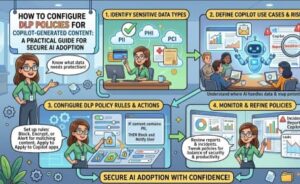
Artificial Intelligence has rapidly transformed workplace productivity, and Microsoft Copilot is leading this transformation by helping users generate documents, emails, presentations, reports, code, and more within the Microsoft 365 ecosystem. While these AI-powered capabilities significantly improve efficiency, they also introduce new security and compliance challenges.
One of the biggest concerns for organizations is ensuring that AI-generated content does not expose sensitive information or violate compliance regulations. This is where Data Loss Prevention (DLP) policies become essential.
Properly configuring DLP policies for Copilot-generated content enables organizations to embrace AI innovation while protecting confidential data, maintaining regulatory compliance, and reducing the risk of accidental information disclosure.
In this guide, you’ll learn what DLP is, why it matters for Microsoft Copilot, and how to configure effective DLP policies to keep your organization’s data secure.
What is Data Loss Prevention (DLP)?
Data Loss Prevention (DLP) is a security capability within Microsoft Purview that identifies, monitors, and protects sensitive information across Microsoft 365 services.
DLP policies help organizations prevent users from:
- Sharing confidential documents externally
- Sending sensitive information through email
- Uploading regulated data to unauthorized locations
- Accidentally exposing customer or financial information
- Violating compliance requirements
Instead of relying solely on user awareness, DLP automatically enforces security policies whenever sensitive content is detected.
Why Copilot Changes the Security Landscape
Microsoft Copilot doesn’t create information from nowhere—it uses the data that users already have permission to access.
For example, Copilot may generate:
- Financial summaries
- Customer reports
- HR documents
- Legal contracts
- Project documentation
- Executive presentations
Although Copilot respects existing Microsoft 365 permissions, the generated content may contain highly sensitive information that users could unintentionally share outside the organization.
Without DLP controls, AI-generated documents could become another pathway for data leakage.
That’s why organizations should review and strengthen their DLP strategy before enabling Copilot organization-wide.
Common Risks of Copilot-Generated Content
Organizations commonly encounter risks such as:
Exposure of Confidential Information
Copilot may summarize multiple confidential documents into a single report containing sensitive business information.
Accidental External Sharing
Employees may unknowingly share AI-generated files with vendors, contractors, or external partners.
Compliance Violations
Industries such as healthcare, finance, and government often have strict requirements regarding personally identifiable information (PII), payment data, or protected health information (PHI).
Intellectual Property Leakage
AI-generated documents may include proprietary research, internal strategies, pricing information, or product roadmaps.
Implementing DLP policies helps minimize these risks before content leaves Microsoft 365.
Prerequisites Before Configuring DLP Policies
Before creating DLP policies, ensure that:
- Microsoft Purview is enabled.
- Appropriate Microsoft 365 licensing is in place.
- Sensitive Information Types are configured.
- Microsoft 365 Copilot is deployed according to organizational governance.
- Security administrators have the required permissions.
A well-prepared environment simplifies policy management and reduces configuration errors.
Step-by-Step: Configure DLP Policies for Copilot-Generated Content
Step 1: Open Microsoft Purview Compliance Portal
Sign in to the Microsoft Purview portal using an account with Compliance Administrator or Security Administrator permissions.
Navigate to:
Data Loss Prevention → Policies
This is the central location for creating and managing DLP policies.
Step 2: Create a New DLP Policy
Select Create Policy.
Microsoft provides numerous built-in policy templates based on regulatory standards, including:
- GDPR
- HIPAA
- PCI DSS
- U.S. Personally Identifiable Information
- Financial Data
- Custom organizational policies
Choose the template that aligns with your organization’s compliance requirements.
Step 3: Select the Locations to Protect
Configure the workloads where the policy should apply.
Typical locations include:
- Exchange Online
- SharePoint Online
- OneDrive
- Microsoft Teams
- Microsoft 365 Apps
- Endpoint Devices
Since Copilot creates and accesses content across Microsoft 365, protecting multiple workloads provides broader coverage.
Step 4: Configure Sensitive Information Detection
Next, define what the policy should protect.
Examples include:
- Credit card numbers
- Passport numbers
- National identification numbers
- Bank account information
- Employee records
- Customer information
- Intellectual property
- Confidential project names
Microsoft Purview offers hundreds of built-in Sensitive Information Types, and organizations can also create custom classifiers tailored to their business.
Step 5: Define Policy Conditions
Specify when the DLP policy should trigger.
Examples:
- More than five credit card numbers detected
- Documents labeled “Confidential”
- Files containing financial keywords
- Customer databases exported to Excel
- HR records stored in SharePoint
Carefully designed conditions reduce false positives while maintaining strong protection.
Step 6: Configure Protective Actions
Once sensitive content is detected, choose the appropriate response.
Common actions include:
- Block sharing externally
- Restrict downloads
- Encrypt files
- Display policy tips
- Notify administrators
- Generate audit logs
- Require business justification
- Alert compliance teams
Many organizations initially use warning notifications before enforcing stricter blocking rules.
Step 7: Enable User Notifications
User education is an important component of DLP.
Configure Policy Tips that explain:
- Why the action is restricted
- Which sensitive information was detected
- How users can correct the issue
These notifications improve compliance without frustrating users.
Step 8: Test the Policy
Before enabling enforcement organization-wide, run the policy in Test Mode.
Monitor:
- Trigger frequency
- False positives
- Business impact
- User feedback
Testing helps refine policy settings before full deployment.
Step 9: Enable the Policy
After successful validation, switch the policy to Enforced Mode.
Continue monitoring alerts and activity reports to ensure the policy performs as expected.
Best Practices for Copilot DLP Policies
Implementing DLP is not just about blocking content—it is about balancing security with productivity.
Consider these best practices:
- Start with monitoring before blocking.
- Classify sensitive data consistently.
- Use Microsoft Information Protection labels.
- Review DLP alerts regularly.
- Update policies as regulations evolve.
- Educate employees on responsible AI usage.
- Apply the principle of least privilege.
- Combine DLP with Microsoft Defender and Microsoft Purview Insider Risk Management.
These practices create a layered security approach that supports safe AI adoption.
Monitoring Copilot Activity
Security administrators should continuously review:
- DLP policy matches
- User override attempts
- Compliance reports
- Audit logs
- Sharing activities
- AI-generated document trends
Microsoft Purview provides dashboards that help identify patterns and potential security concerns before they become incidents.
Common Mistakes to Avoid
Many organizations make avoidable mistakes during implementation.
These include:
- Applying overly restrictive policies that interrupt business workflows
- Ignoring false positives
- Failing to classify sensitive data
- Not testing policies before enforcement
- Overlooking endpoint protection
- Neglecting employee awareness training
Avoiding these pitfalls leads to a smoother Copilot deployment and stronger data protection.

Microsoft Copilot is changing how employees create, analyze, and collaborate with information. However, increased productivity should never come at the expense of data security.
By configuring Data Loss Prevention policies through Microsoft Purview, organizations can confidently embrace AI while protecting sensitive information, maintaining compliance, and reducing the risk of accidental data exposure.
The most effective DLP strategy combines intelligent policy design, ongoing monitoring, employee education, and continuous improvement. As AI becomes a standard part of modern workplaces, organizations that invest in strong governance today will be better prepared for the future of secure, AI-powered productivity.
Extra posts:
 How Do I Secure Copilot? A Practical Guide to Protecting Your AI Assistant
  Preparing Your SharePoint Content for Copilot: A Practical Guide
  SharePoint Gets an AI Upgrade: New Copilot Citation Analytics Show Which Content Matters Most
  How to Prevent Copilot from Indexing Sensitive HR Folders in SharePoint Using Purview DLP and SAM
  Governance for Generative AI: Enforcing Data Loss Prevention (DLP) with Microsoft 365 Copilot
  Your Guide to Debugging and Reviewing Copilot-Generated Code